
How to exit developer mode on Xbox?
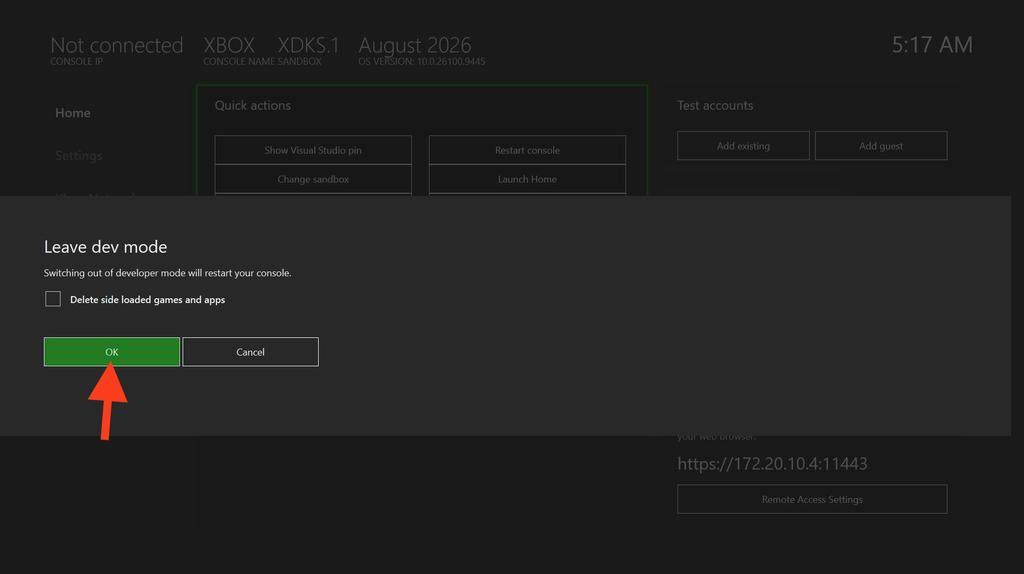
Once we unlock Developer Mode, if we want to exit Developer Mode and return to Retail Mode to play games normally, we can do so in four ways.
I. Quick Exit: Exit Xbox Developer Mode via Dev Home (Most Commonly Used)
If you are currently in Xbox Developer Mode and want to switch back to Retail Mode to play games normally, the process is very simple:
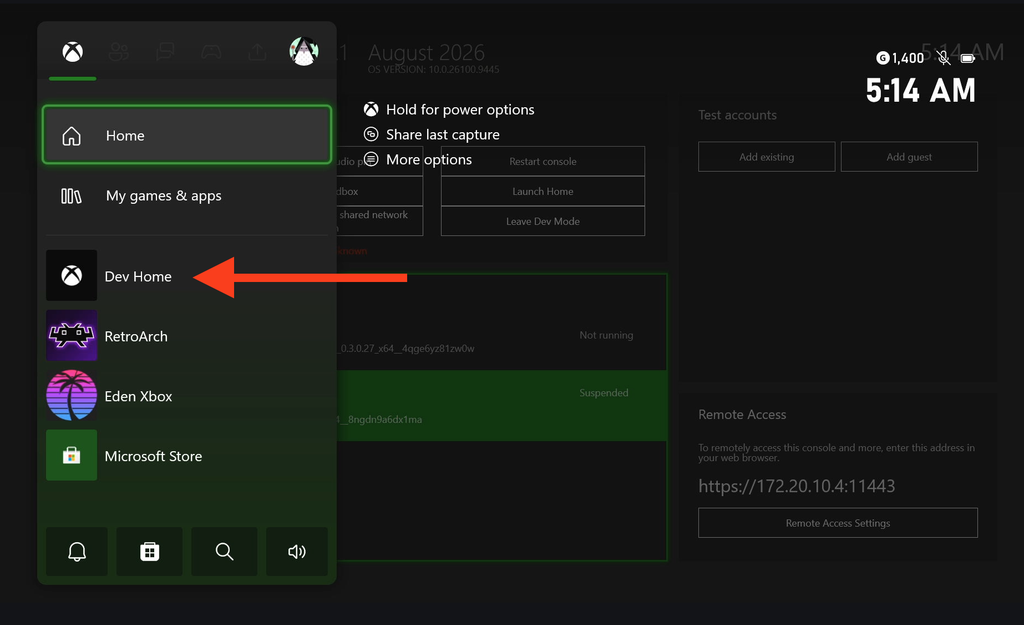
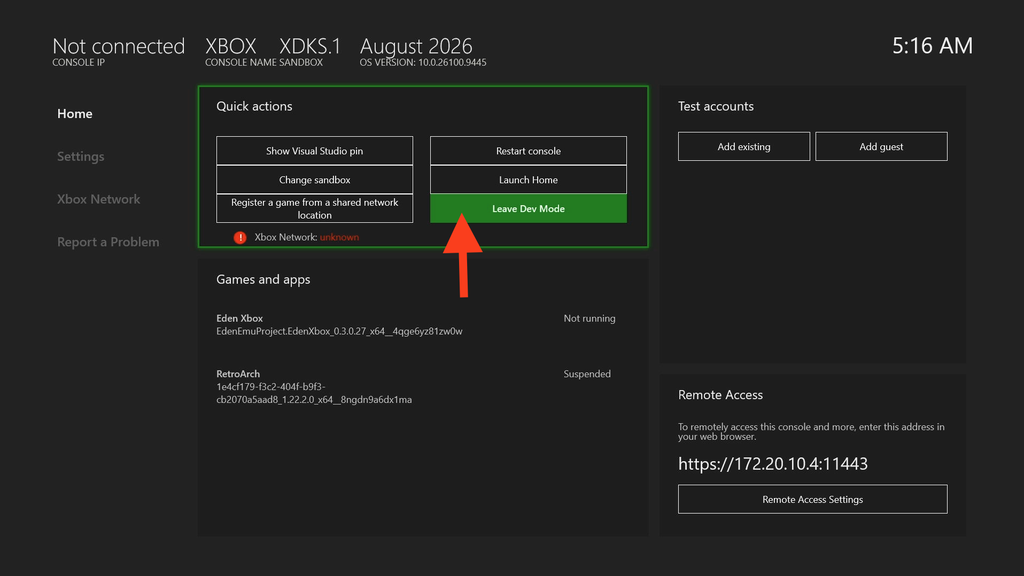
Locate and open the Dev Home app on your Xbox console. Open Dev Home and select "leave Dev Mode." The console will automatically restart and return to Retail Mode.
After confirmation, the console will automatically restart. Once restarted, it will revert to Retail Mode, allowing you to play all games normally.
Note: If you want to continue playing emulators in Developer Mode next time, do not check the box to 'delete side loaded games and apps', as this will delete all games and apps installed in Developer Mode.
II. Remote Deactivation: Xbox Partner Center Device Management
If your Xbox console is temporarily unavailable (for example, it has been sent for repair or you are not nearby), you can use the following method to remotely disable Developer Mode through Partner Center:
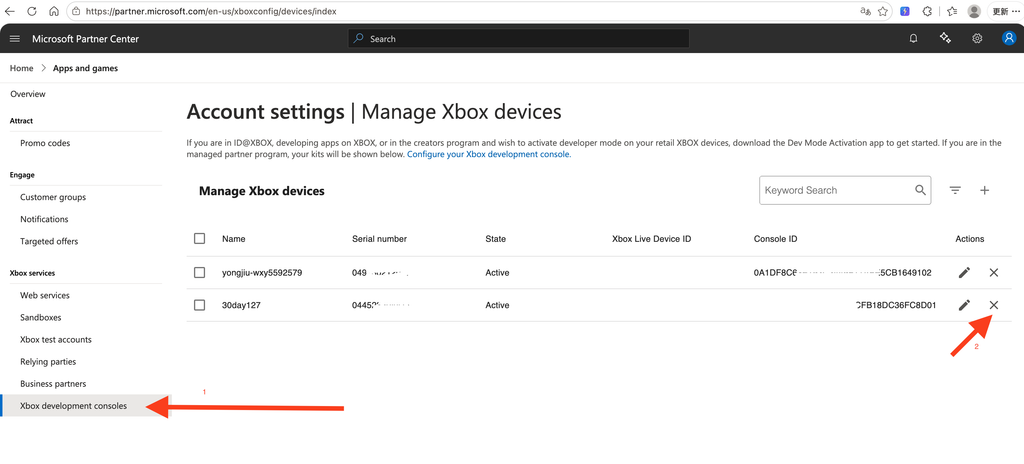
- Log in to Xbox Partner Center and go to the "Manage Xbox devices" / Xbox development consoles page.Xbox Partner Center
- Find the console to be deactivated by serial number, console ID, or device ID.
- Click the "X" button
 under the "Action" column to disable it.
 - If you have not yet switched your console to Retail Mode, switch it first using the method described above.
Note: After exiting, the console will return to Retail Mode, but Developer Mode settings, app data, and game data will be retained. Later, you can obtain a verification code through the Xbox Dev Mode app and add it on the "Manage Xbox devices" / Xbox development consoles page in Xbox Partner Center; you can then switch back at any time.
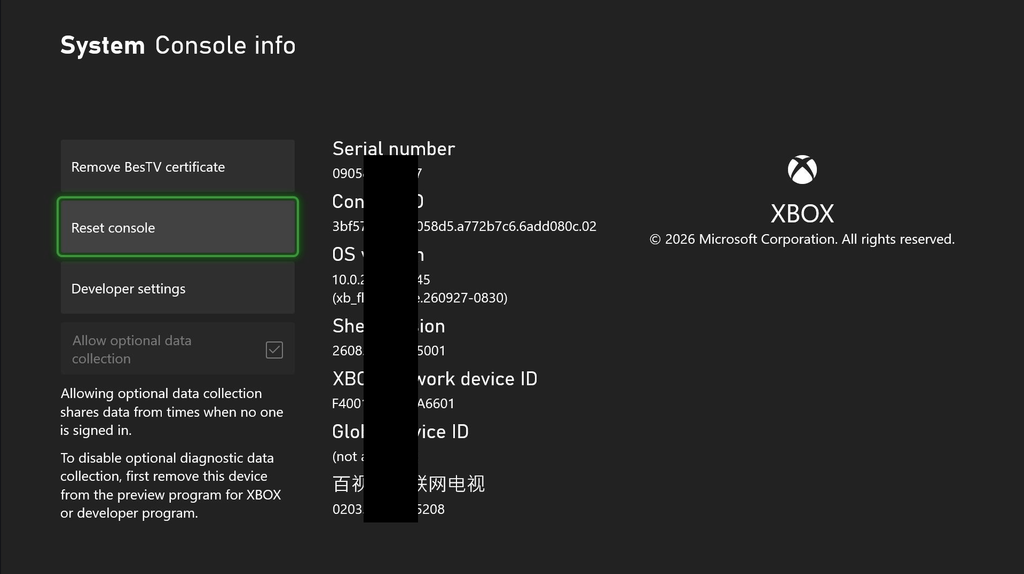
III. Disable Developer Mode by Resetting the Console
If you do not want to use the app, you can also disable Developer Mode by resetting the console. However, note:
Resetting the console will erase all locally saved game data!
Steps:
- Enter 'My Games & Apps' > 'Apps' > 'Settings'Or press the Home button
 and go to 'Profile & system' > 'Settings'
 - On the left, select "System"; on the right, select "Console info."
- Choose "Reset console."
- Choose "Reset and remove Everything" — this option will restore the console to its original retail state and delete all apps, games, and local data.
IV. Completely Disable Developer Mode: Switch Back to Retail Mode + Deactivate via the App.
If you want to completely stop using Developer Mode, you need to complete the following two steps:
Step 1: Switch to retail mode
Following the method above, click "Exit Dev Mode" in Dev Home, and the console will restart and enter Retail Mode.
Step 2: Deactivate Developer Mode Using the Xbox Dev Mode App
After the console returns to Retail Mode, this is the officially recommended way to disable Developer Mode:
- Enter 'My Games & Apps' > 'Apps'
- Find and open 'Xbox Dev Mode' App
- choose 'Deactivate.'
- Follow the prompts to complete the deactivation process.
Only after completing these two steps will your console be completely removed from the Developer Program.
V. Common Problems and Solutions
After clicking "Exit Dev Mode," the console does not respond??
This is a fairly common problem. Solution: In the dialog box that appears after clicking "Exit Dev Mode," uncheck the "Delete sideloaded games and apps" checkbox. Then click OK to exit Developer Mode normally.
What happens to previously installed sideloaded games after exiting Developer Mode?
Upon exiting, the system will ask whether you want to delete sideloaded games and apps. If you choose to delete them, this content will be cleared; if you uncheck the box, the sideloaded content will be retained but will not work properly in Retail Mode.
Can I re-enter Developer Mode after exiting it?
Yes. As long as your developer account is still active, you can switch back to Developer Mode at any time through the Xbox Dev Mode app.
Will data be lost after exiting Developer Mode?
If you are simply "exiting Developer Mode" and returning to Retail Mode, no data will be lost. However, if you choose "Delete sideloaded games and apps" to deactivate Developer Mode, all local game data and apps will be deleted.