
Tutorial on installing the Jadyx emulator for Xbox Series X|S
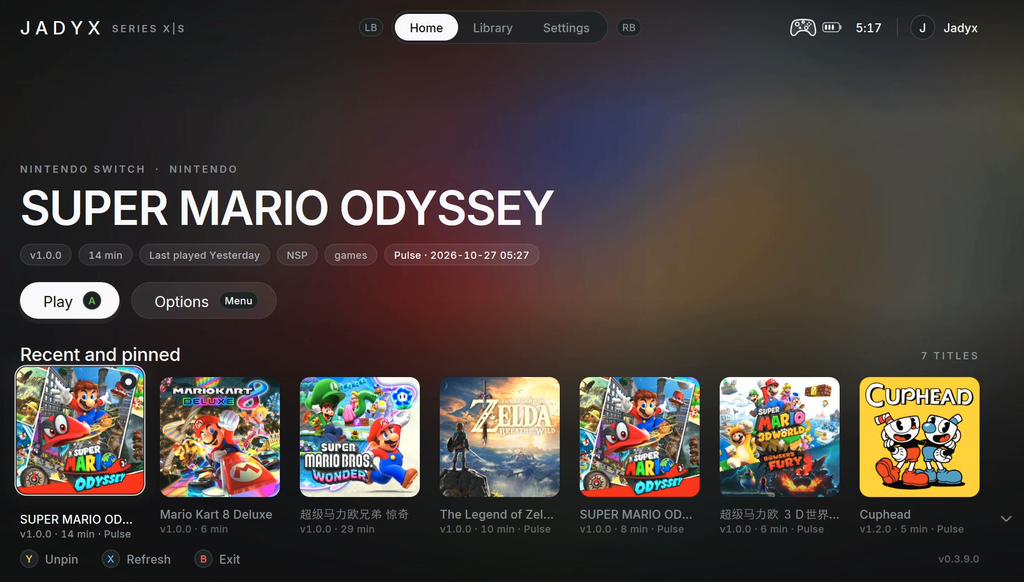
Jadyx is a Nintendo Switch emulator for Xbox Series X|S Developer Mode, based on Eden and maintained by JulianDr14. It uses a native Direct3D 12 renderer built specifically for the Xbox graphics environment. Unlike Eden on PC, Jadyx is distributed as a UWP app and must be installed and run on an Xbox Series X|S with Developer Mode unlocked.
- Simulator user interface language: English, Spanish, or Brazilian Portuguese.
- Language support during gameplay: 18 Switch languages.
You will need: an Xbox Series X|S with developer mode unlocked, and the download.Latest version The installation package, as well as keys, firmware, and games ready to be exported from your own Switch.
Tutorial on installing the Jadyx emulator for Xbox Switch
Install Jadyx emulator
Download Jadyx_<version>x64.app and Microsoft.VCLibs.x64.14.00.appx from the release page. Open the Device Portal at the address shown in Dev Home: https://<console-ip>:11443. Select Add, select the app Jadyx<version>_x64.app, and click Next to add the dependency Microsoft.VCLibs.x64.14.00.appx. Click Start and wait for the emulator installation to complete. If the dependency has already been installed on the console, you can skip installing dependencies in all subsequent installations.
Change the application type to game
On the developer homepage, select Jadyx and click →View details,Will Application type Set as game。
Upload key and firmware
You can upload the key and firmware in one of the following three ways.
1. Upload via USB flash drive: Press  to launch Jadyx, insert the USB drive into the Xbox, switch to Settings with
 , find File manager, and import your own keys and firmware under Import your console's keys and Import your console's firmware respectively.
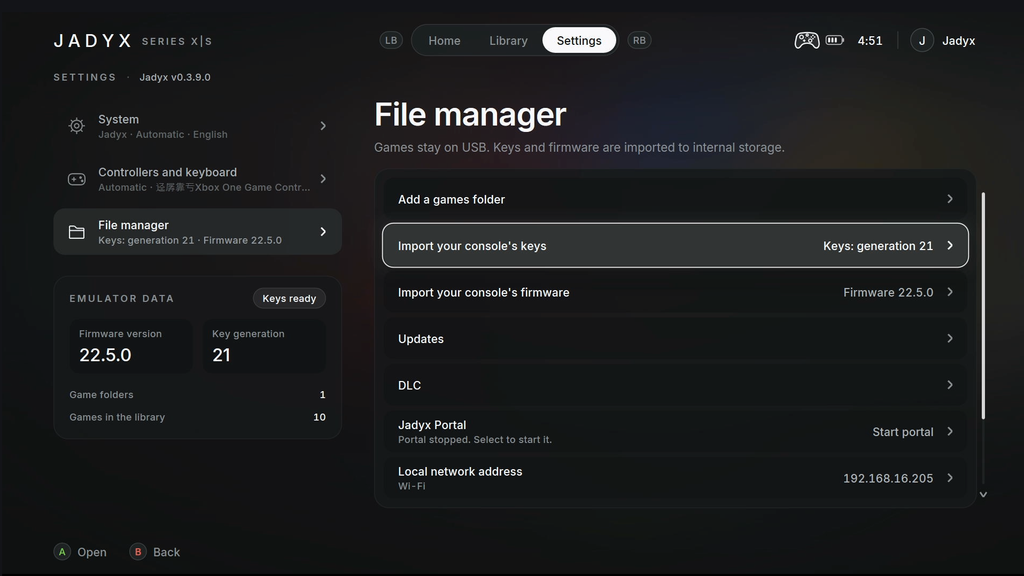
2. Via Jadyx Portal: On a PC or phone on the same network, open the address and enter the code to access Jadyx Portal, then upload the keys and firmware. In my own test, this was inaccessible.
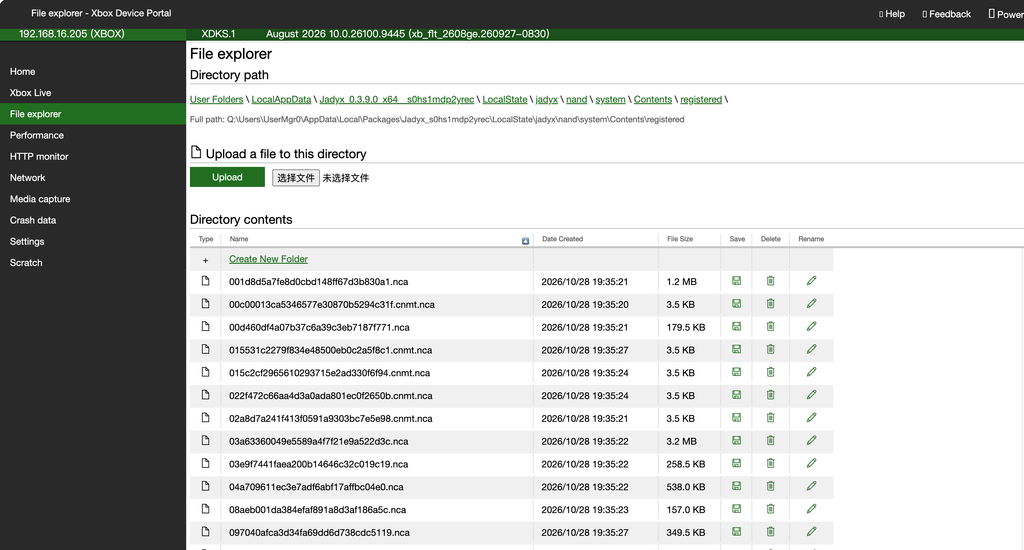
3. Via Xbox Device Portal:Access the Xbox Device Portal at https://<console-ip>:11443, open the File explorer section on the left, and navigate as follows:
Key path:LocalAppData \ Jadyx_0.3.9.0_x64__s0hs1mdp2yrec \ LocalState \ jadyx \ keys\ — Upload the key here;
Firmware path:LocalAppData \ Jadyx\ LocalState \ jadyx \ nand \ system \ Contents \ registered \ —Upload the firmware here.
Import game
You can add your own games from a USB drive, Jadyx Portal, Xbox device portal, or FTP tools.
1. Import the game via USB drive:Switch to Settings with , find File manager, and add a game folder under Add a games folder.
2. Via Jadyx Portal: Since I cannot access this portal myself, I will not describe it here. I will update the steps once it becomes available.
3. Via Xbox Device Portal: After entering the Xbox device portal, access File Explorer and open the following in sequence: LocalAppData \ Jadyx_0.3.9.0_x64__s0hs1mdp2yrec \ LocalState \ games Simply upload the game here.
4. Via FTP tool: Use FTP AUse FTP software to access the Xbox's D drive. Create a new folder named Jadyx\games under D:\DevelopmentFiles, and upload the games to this folder; they will be recognized automatically. For FTP instructions, see 《How to expand Xbox Developer Storage? Complete tutorial on adjusting partition size and importing games to internal storage (Q drive/D drive)》
Update the emulator version
To update Jadyx, simply install the new installation package through the Xbox Device Portal. It will automatically overwrite the old version. Do not uninstall the old version first; otherwise, it will delete the keys, firmware, saves, and game files.
Common Problem Solving
This section will be continuously updated with problems encountered in actual use and their corresponding solutions. Currently, there are still many issues, but they will be gradually improved with each version iteration.
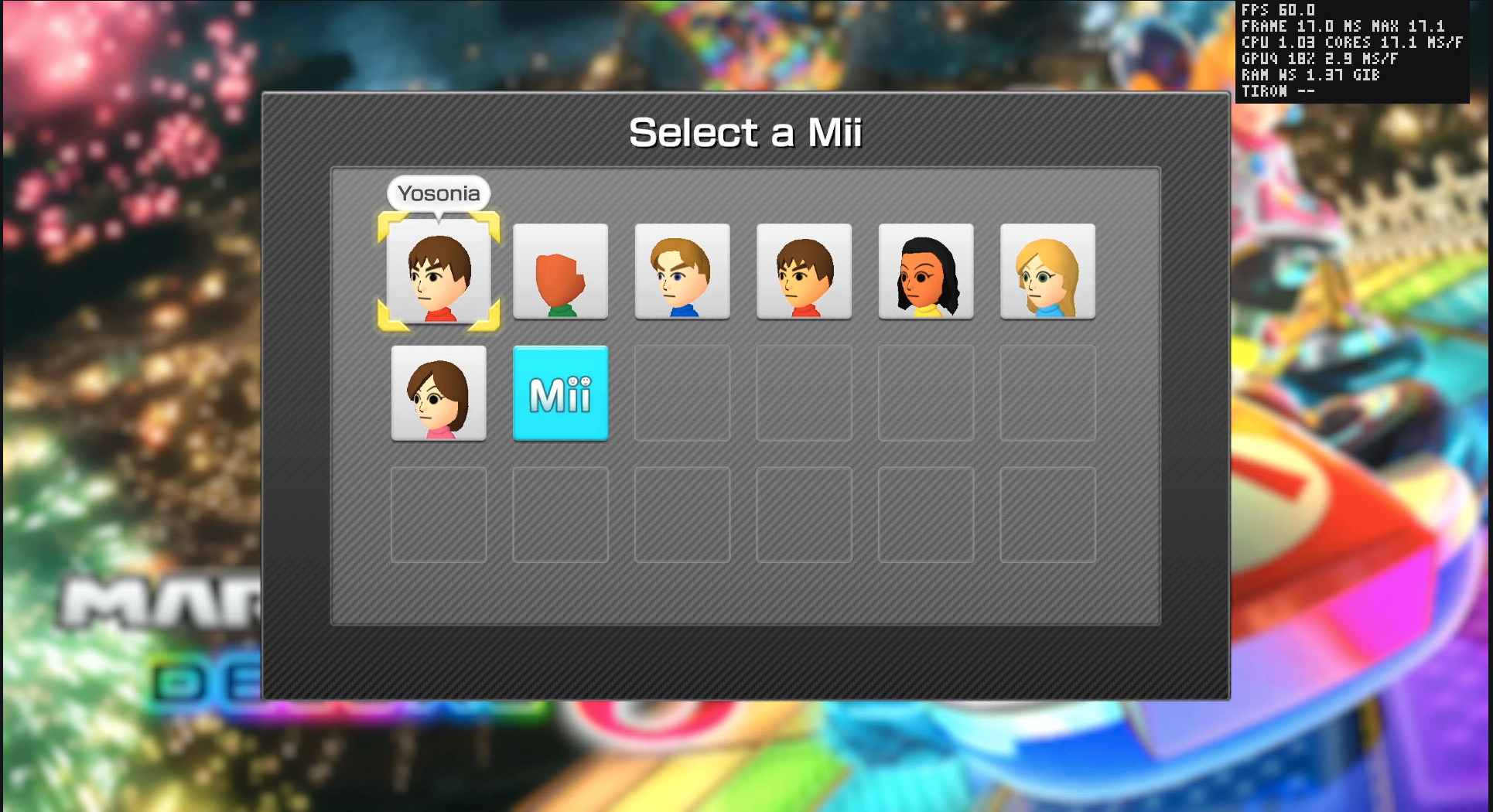
Stuck on the Select a Mii Screen and Unable to Enter the Game
When I tried to run Mario Kart 8, I encountered a problem where the game got stuck on the Select a Mii screen and could not proceed. You need to update Jadyx to version 0.3.9.0 Beta or later, switch to Settings with , go to System > Mii editor, create a Mii avatar, and then the game should run normally.
Performance and Compatibility Notes (Supplementary)
Jadyx is currently in Beta/experimental status. Due to UWP memory limits and JIT code caching, frame rates may fluctuate significantly in complex scenes for some games, and compatibility varies from game to game. It is recommended to keep the emulator up to date to receive the latest compatibility fixes and performance improvements.
Support this site
If these guides helped you, you can buy me a coffee and keep the project going.
You can also support us on these platforms (opens in a new tab)