
Xbox Developer Storage Expansion: Resize the Partition and Import Games to Internal Storage (Q Drive/D Drive) – Full Guide
In Xbox Developer Mode, the system allocates only 5GB of storage by default. To install large apps or games, or to upload game files to Xbox internal storage, you need to manually expand the developer storage partition. This article explains how to adjust and manage Xbox developer storage size and demonstrates two methods for importing game files to internal storage.
1. Xbox Developer Storage Expansion: How to Change the Default 5GB Limit
- Enter Xbox Developer Mode (Dev Home).。
- On the interface, press the Menu button on your controller.
 。
- Select Manage Dev Storage from the pop-up menu.
- Use thebuttons or the to adjust the storage size.
- Click Save when finished.


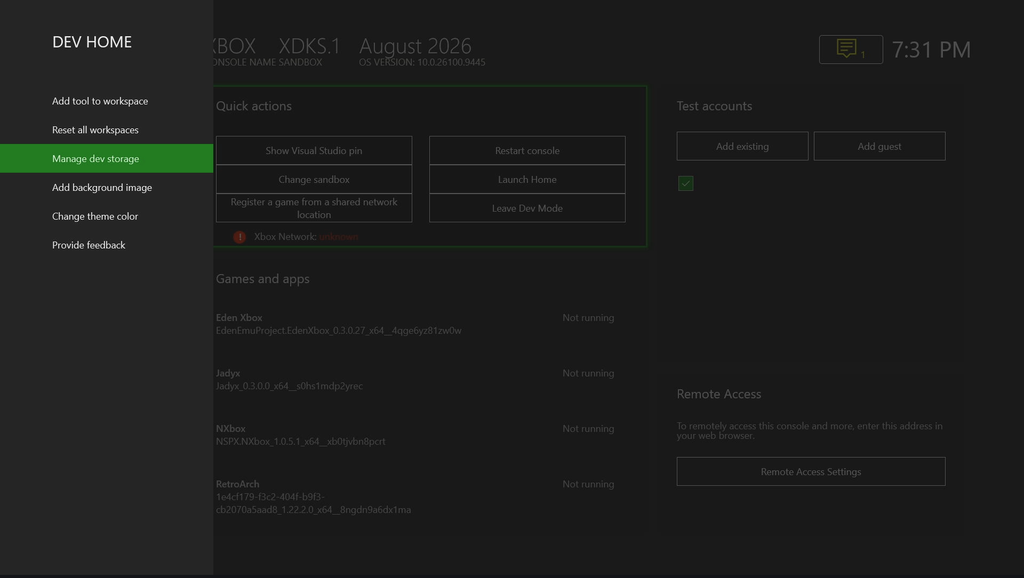
Notice:Resizing the developer storage partition will clear all games, apps, and data in the developer partition. Before proceeding, make sure there is nothing you need to keep.
2. Importing Xbox Games to Internal Storage: Q Drive vs. D Drive
There are two ways to import games to internal storage: one is to import them to the Q drive through the Developer Portal, and the other is to upload files to the D drive using FTP software. Each method has its pros and cons. The Q drive is easier to use, and all emulators can access it. The D drive requires an FTP tool and is more complex, but it lets you see file upload progress. However, only RetroArch and XBSX2 currently support the D drive.
(1) Import to the Q Drive via the Xbox Device Portal File Explorer
- Enable the Enable the Xbox Device Portal on Xbox, then open
https://<Xbox IP>:11443in a browser and sign in to the Xbox Device Portal. - Go to Xbox Device Portal > File Explorer > LocalAppData > your emulator > localState.
- Select the folder where you want to save game files, or create a new folder.
- Upload the game files to that folder. If you don’t want to upload them one by one, compress them into a single archive first, upload it, and enable automatic extraction.
(2) Import to the D Drive via an FTP Tool
To transfer game files to the console’s internal D drive via FTP, you need an FTP tool on your device. Here are three tools I commonly use:
- iPhone: FTPManager client app.
- Android: MiXplorer for Android.
- Windows and Mac: FileZilla.
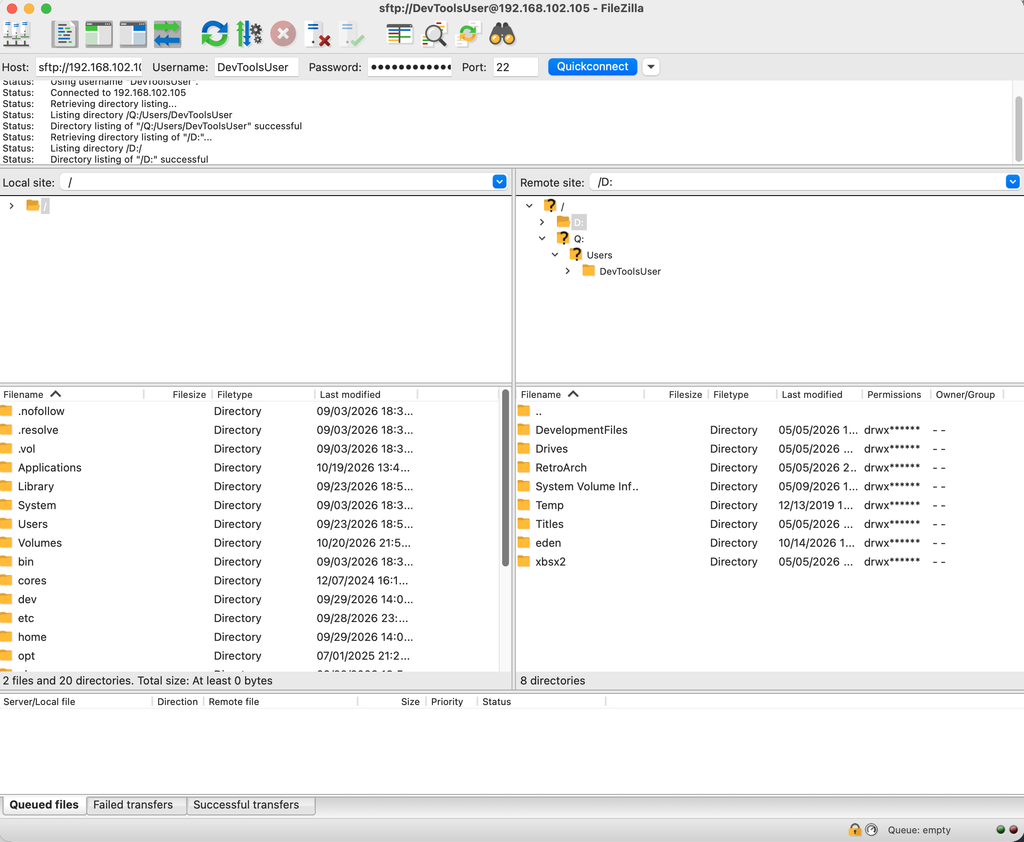
The following example uses FileZilla to demonstrate how to upload files.
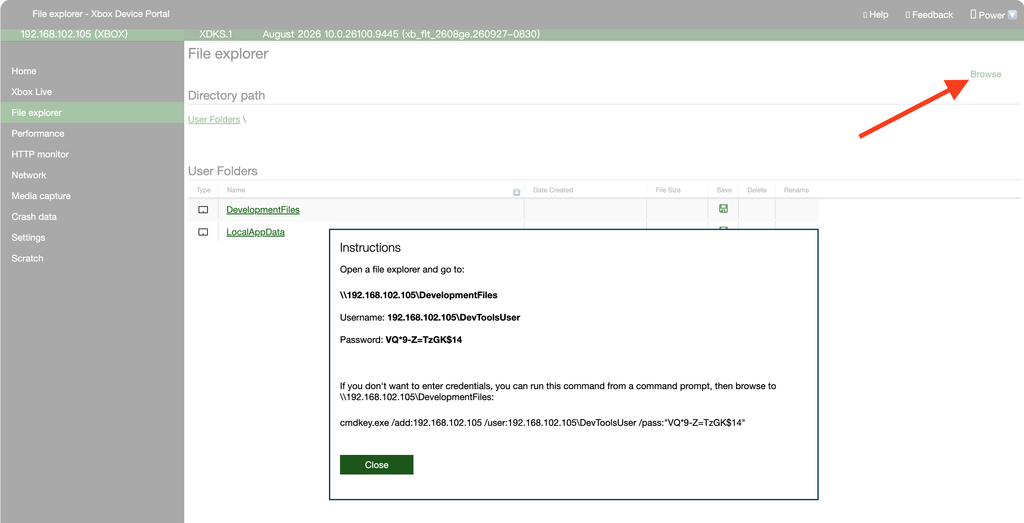
- Go to Xbox Device Portal > File Explorer > Browse.
- Copy the contents of the pop-up window into your FTP tool.
- Enter the Xbox IP address as the host, for example
192.168.102.105. - Enter
DevToolsUseras the username. - Enter the password shown in the pop-up window, for example
VQ*9-Z=TzGK$14. - Enter
22as the port number. - Click Quickconnect to access the Q drive.
- If you need to upload files to the D drive, simply enter
/D:in the Remote site field. - Then create folders as needed and upload your files.
FAQ
Q1: Will resizing the developer storage partition delete my games in Retail Mode?
No. Developer Mode and Retail Mode are two independent storage environments. What you adjust in Manage Dev Storage is only the size of the Developer Mode partition. Once the operation is confirmed, emulators, sideloaded apps, and files in that partition will be cleared; games, saves, and apps in Retail Mode will not be affected. However, it will reduce the available storage space in Retail Mode. The only thing to note is: do not try to free up space by “exiting Developer Mode” or “resetting the console,” as that triggers a different cleanup process. If you only use the Manage Dev Storage slider to expand the partition, Retail Mode content is safe.
Q2: Why do only a few emulators, such as RetroArch and XBSX2, recognize the D drive?
Because UWP apps in Dev Mode run in an isolated security sandbox and cannot access partitions arbitrarily by default. To read from or write to the D drive, an app must actively declare file system access capabilities or obtain user authorization through a folder picker on first launch. Emulators such as RetroArch and XBSX2 are adapted for this scenario and can handle the authorization process. Most emulators, however, are designed only for the Q drive (LocalAppData) or user folders and do not implement permission requests for the D drive. Therefore, even if you put ROMs on the D drive, they cannot read them. In other words, it is not that the D drive “only supports” these two emulators; rather, these two emulators actively support the D drive.
Support this site
If these guides helped you, you can buy me a coffee and keep the project going.
You can also support us on these platforms (opens in a new tab)