
Xbox Developer Mode Remote Access Setup Tutorial: Local Area Network Connection and Device Portal Enablement (2026)
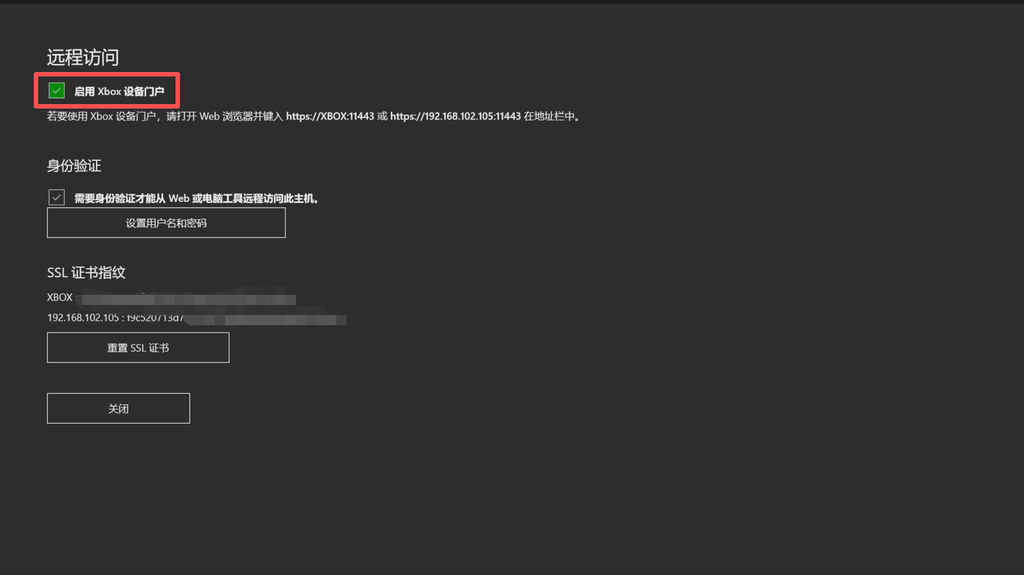
You need to enable remote access settings in Developer Mode to log in to the Xbox Developer Portal and install emulators and other applications. If you haven't enabled Developer Mode yet, please refer to [link to relevant documentation].Full tutorial on enabling Developer Mode on Xbox One and Xbox Series X/S (latest 2026)
1.Network connection: Ensure your PC and Xbox are on the same local area network.To ensure a smooth connection between your computer and Xbox console, the Xbox needs to be connected to the same local network as your computer, i.e., the same network connected to the same router. You can use one Ethernet cable and one Wi-Fi connection, but Wi-Fi or an Ethernet connection is recommended.
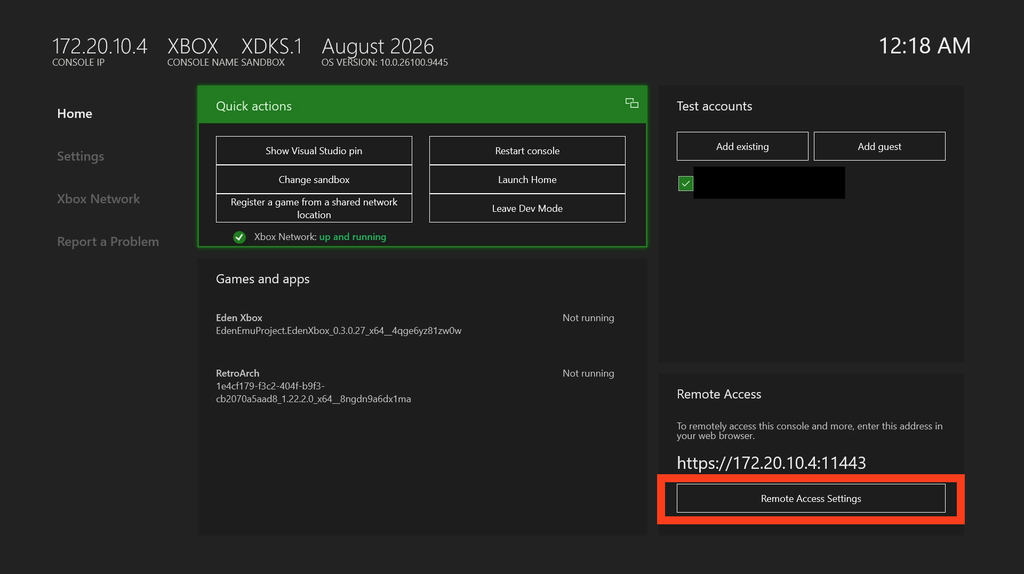
2. Set username and password.In the remote access section at the bottom right of the developer's main interface, find the remote access settings, click to enter, and you can set a username and password. It is recommended to set a simple one, such as username 666 and password 888. This setting is only for local area network access and does not require high security, but if you are in a public network environment, it is recommended to use a more complex password.
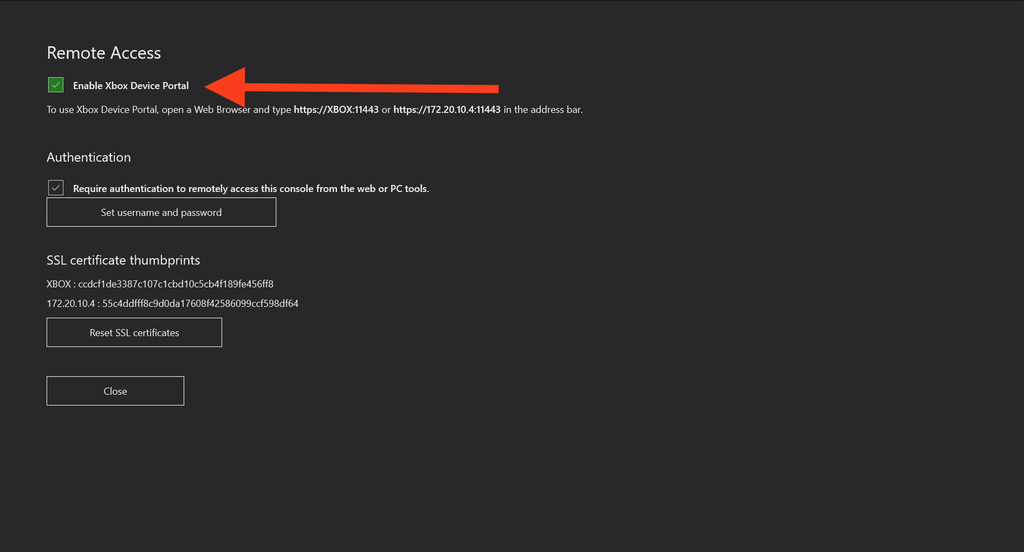
3. Enable remote access settings.After setting your username and password, click Save and confirm that you have checked Enable Xbox Device Portal.
4.Enter the access address: HTTPS and port 11443 are both required.Enter the full URL https://192.168.XX.XX:11443 into your computer's browser. Be sure to enter it completely, including https (not http); otherwise, it will not be accessible.
Frequently Asked Questions
What should I do if I can't connect to the developer portal?
1. Ensure that your PC and Xbox are connected to the same router and on the same network segment (avoid one using a wired connection and the other using Wi-Fi, which could result in different subnets).
2. Confirm that 'Enable Xbox Device Portal' is checked in Dev Home.
3. Confirm that the browser address bar contains the complete address. https:// and :11443
4. Try temporarily disabling your PC's firewall or antivirus software's HTTPS scanning function.