
How to enable Game Mode in Xbox Developer Mode for optimal emulator performance?
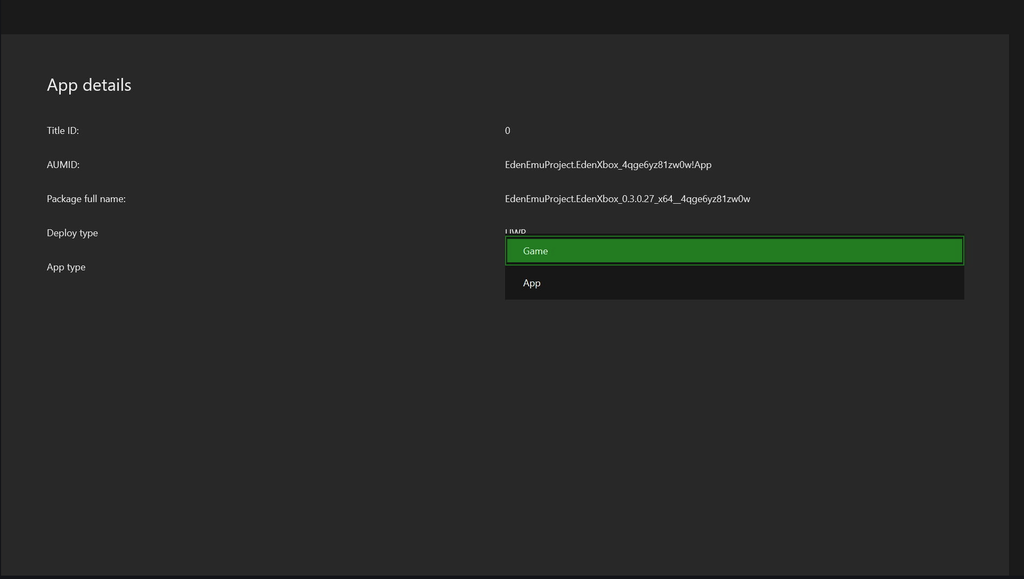
In Xbox Developer Mode, the core step for getting the best emulator performance is to set the emulator app to "Game Mode." This allows the system to allocate more hardware resources to it.
1. Manually configure on the console:
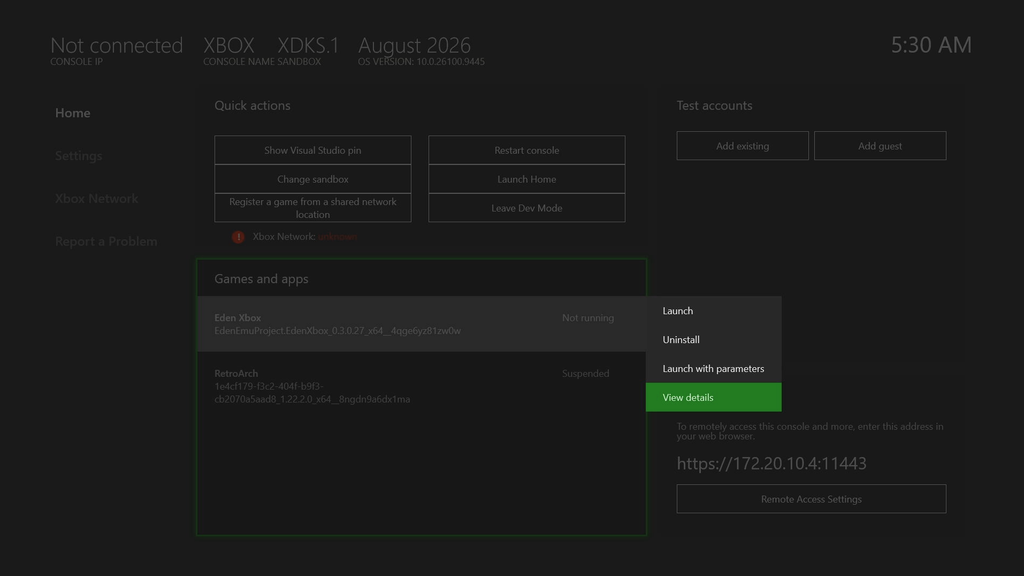
- In Xbox's "My Games & Apps," highlight your emulator app.
- Press the View button
 on your controller and select "View details."
 - Change "Application Type" from "App" to "Game."
2. Configure via Xbox Device Portal (Recommended):
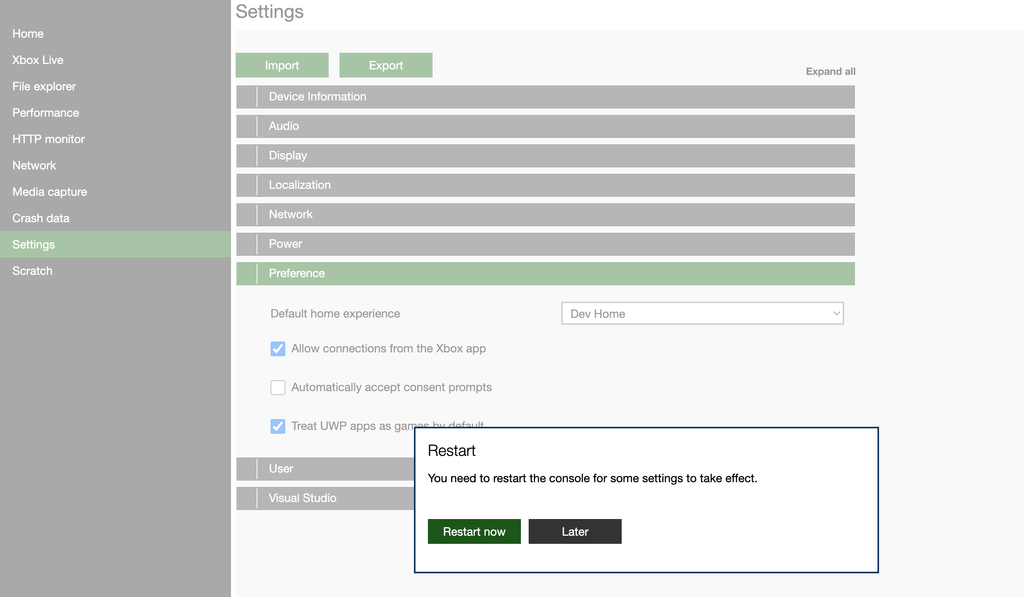
- Enter the Xbox remote access portal IP address in your computer browser (for example, https://192.168.1.XX:11443) and sign in to the Xbox Device Portal.
- In the left-hand menu, go to Settings > Preferences.
- Select the "Treat UWP apps as games by default" checkbox.
- After that, restart the console as prompted.
- Setting the emulator to "Game Mode" provides the following benefits:
- Significantly increased memory allocation: In Developer Mode, a typical UWP app can usually use only about 1 GB of memory. Once it is recognized as a "Game," available memory increases significantly to around 5 GB. This is crucial for emulators with high memory requirements.
- Prioritized CPU and GPU resources: When the emulator runs as a "Game," it can obtain more CPU cores and higher GPU access priority, ensuring a more stable frame rate.