
Xbox RetroArch Installation Tutorial: A Complete Guide from Developer Mode to UWP Deployment (2026)
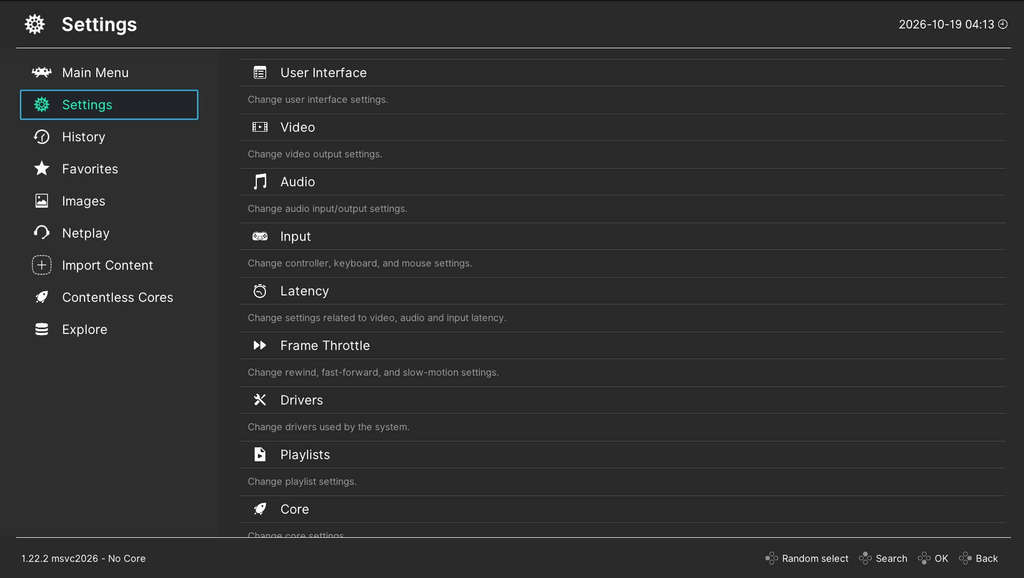
This tutorial only covers Xbox One and Xbox Series consoles. The following sections will detail how to set up and use the UWP port of RetroArch. Due to RetroArch's cross-platform nature, some of the setup instructions are also applicable to other platforms. If you encounter any difficulties in the tutorial or need assistance proceeding to the next step, please leave a comment below.
I. Preparatory Work
Before you begin installing the RetroArch emulator, please ensure that you currently meet the following requirements:
- Xbox Developer Mode is now activated:The Xbox console must be successfully set up and running in developer mode.
- Enable remote access settings:Remote access must be enabled and configured in the Xbox Dev Home app. For instructions on how to enable remote access settings, please visit this page.Please visit this page。
- For users with external hard drives:If you use an external USB hard drive, the drive must be formatted as NTFS, and full read/write permissions must be set for the UWP app.
II. Obtaining the RetroArch installation package
You have several ways to obtain for a RetroArch UWP:
- Xbox emulator homepage(Recommended for most users):
- This is the simplest method. Download RetroArch directly from the Xbox Emulator homepage. Xbox simulator
- Note:This websiteVersions on this website usually do not come with any cores pre-installed. You will need to download them later using the Online Updater.
- Obtained from open-source websites:
- If you need the latest version, you can go to the official website to get it.
- The main repository for UWP builds is maintained by the Xbox Emulation Hub:https://github.com/XboxEmulationHub/RetroArch/releases
III. Install RetroArch on Xbox
Access the developer portal:Enter the link address in the remote access settings into your computer or smartphone browser, log in to the Xbox device portal, and then select to install the RetroArch application package.
Note:1. This URL may change. Always verify it on the developer's homepage before connecting. 2. The application installation package must have a .appx or .msixbundle extension.
Skip security warnings:If your browser displays a security warning ('Your connection is not private'), please click 'Advanced' and 'Continue'. We recommend using Microsoft's own Edge browser, as it is better adapted to the Xbox developer portal.
Navigate to 'Add':In the 'My Games and Apps' section, click 'Add'.
Select file:If you downloaded the emulator file, please extract its contents on your computer or mobile phone. You should have one or more files, generally including two files: the main program and a dependency file.
Upload Appx/Msixbundle:Click 'Select File' (or drag and drop on your computer), select the main RetroArch application file, and then select the dependency file Microsoft.VCLibs.x64.14.00.appx.
Start installation:Click 'Start' and wait for the installation to complete ('Package successfully registered').
Notice:If you encounter keywords like 'installation failed because only the main program was uploaded,' it's because you haven't uploaded the dependency files. Please upload them again.
IV. Initialization Configuration
This step is mandatory; otherwise, the emulator will display garbled characters and have poor performance. This step is crucial for performance and normal functionality.
- Select RetroArch on the developer homepage:On your Xbox, go back to the developer homepage. Look for 'RetroArch' in the list.
- Change the type to 'Game':
- Select RetroArch and press the View button on the Xbox controller.

- Select 'View details'.
- Change the 'Application Type' from 'Application' to 'Game'.
- Press the B button on the Xbox controller to return.

- Select RetroArch and press the View button on the Xbox controller.
- (Recommended) Restart the console:Restart your Xbox after changing the app type. Press the Xbox button on the controller to open Xbox Home
 . Go to the left-hand menu, select Profile & systerm, and then select "power" and select "Restart console."
 - Launch RetroArch:
- After restarting, you will be returned to the developer homepage.
- Go to 'My Games and Apps'.
- RetroArch should now appear under the 'Games' category.
- Select RetroArch and press A
 to launch it.