
USB Drive Not Working in Xbox Developer Mode? How to Fix USB Access Issues
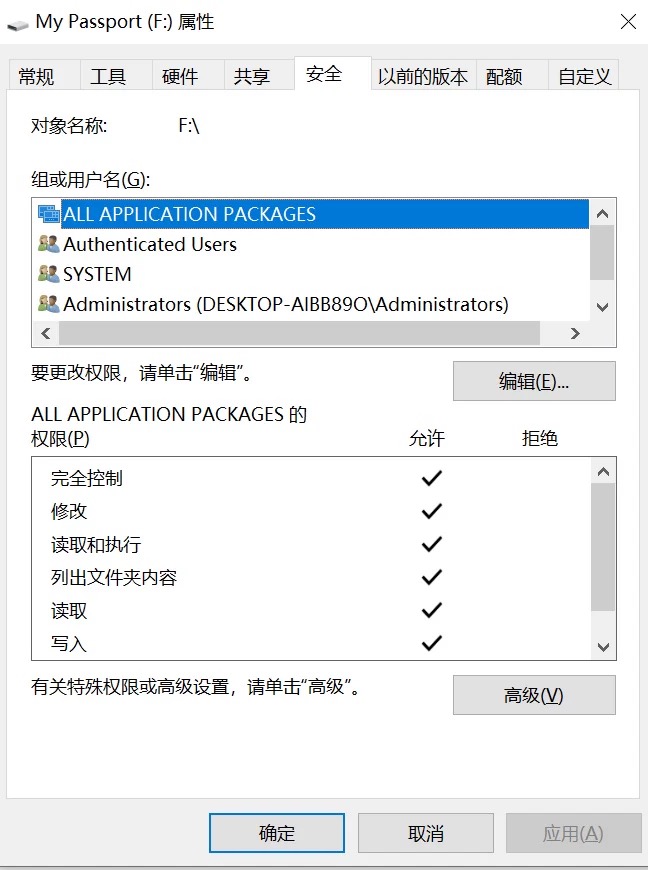
If your USB flash drive or external hard drive is not accessible in Xbox Developer Mode, and UWP applications cannot read files stored on the device, incorrect drive permissions may be one of the possible causes.
This issue can occur when using USB storage devices with Xbox One or Xbox Series X|S consoles in Developer Mode.
In this guide, we will show you how to format your USB drive as NTFS, manually add ALL APPLICATION PACKAGES permissions in Windows, and configure the drive correctly on your Xbox console.
These steps may help resolve USB storage access issues when running UWP applications in Xbox Developer Mode.
1. Why Can’t Xbox Developer Mode Read My USB Drive?
When running applications in Xbox Developer Mode, some UWP apps need appropriate file access permissions to read data from external USB storage devices.
In certain situations, a USB drive formatted on a Windows PC may not have the required permissions for application access.
As a result, an application running in Xbox Developer Mode may be unable to access files stored on the USB drive.
If you are experiencing this issue, try the following solution.
2. Format Your USB Drive as NTFS
First, connect your USB flash drive or external hard drive to a Windows PC.
Follow these steps:
- Open This PC in Windows File Explorer.
- Locate your USB flash drive or external hard drive.
- Right-click the drive and select Format.
- Under File System, select NTFS.
- Click Start and wait for the formatting process to finish.
<Note: Formatting will erase all data on the drive. Back up your important files before proceeding.>
3. Manually Add ALL APPLICATION PACKAGES Permissions
After formatting the USB drive, you can manually configure its security permissions to allow application packages to access the drive.
Step 1: Open USB Drive Properties
Open This PC, right-click your newly formatted USB drive, and select Properties.
Step 2: Open the Security Settings
In the Properties window, select the Security tab.
Click Advanced to open the advanced security settings.
Step 3: Find ALL APPLICATION PACKAGES
In the Advanced Security Settings window:
- Click Add.
- Click Select a principal.
- Click Advanced.
- Click Find Now.
- Locate ALL APPLICATION PACKAGES in the search results.
- Select it and click OK to confirm.
Step 4: Grant Full Control Permissions
Return to the permission settings window.
- Select Full Control under the permission options.
- If available, configure the permission to apply to the current drive, subfolders, and files.
- Click OK to save the changes.
Wait for Windows to finish applying the new permissions.
Your USB drive should now have the additional application package permissions.
4. Connect the USB Drive to Xbox Developer Mode
After configuring the permissions on your Windows PC, safely eject the USB drive and connect it to your Xbox console.
When Xbox asks how you want to configure the storage device, select:
Media
Do not select Games & Apps.
This is an important step. Selecting Media allows the drive to be configured as external media storage rather than as a dedicated game and application storage device.
Once the setup is complete, open Xbox Developer Mode and launch the UWP application that needs to access your USB drive.
Check whether the application can now read the files stored on the device.
5. USB Drive Still Not Working? Check These Things
If your USB drive is still inaccessible after following the steps above, check the following:
- Make sure the USB drive is formatted as NTFS.
- Verify that ALL APPLICATION PACKAGES has been added successfully.
- Make sure Full Control permissions have been applied to the drive and its subfolders and files.
- Confirm that the Xbox console has configured the USB drive as Media storage.
- Check whether the UWP application supports accessing external USB storage devices and has the required file access capabilities.
Important: Adding NTFS permissions does not guarantee that every USB access issue will be resolved. Some applications may still be unable to access external storage because of Xbox Developer Mode API restrictions, application capabilities, or file access limitations.
Conclusion
If your USB drive cannot be accessed by applications running in Xbox Developer Mode, you can try the following troubleshooting steps:
Format as NTFS → Add ALL APPLICATION PACKAGES → Grant Full Control → Configure the USB drive as Media on Xbox.
We hope this guide helps you resolve USB storage access issues and get your UWP applications working properly in Xbox Developer Mode.
Support this site
If these guides helped you, you can buy me a coffee and keep the project going.
You can also support us on these platforms (opens in a new tab)