
How to Install BotW Recomp on Xbox: Zelda: Breath of the Wild Wii U Port Guide
1. Introduction
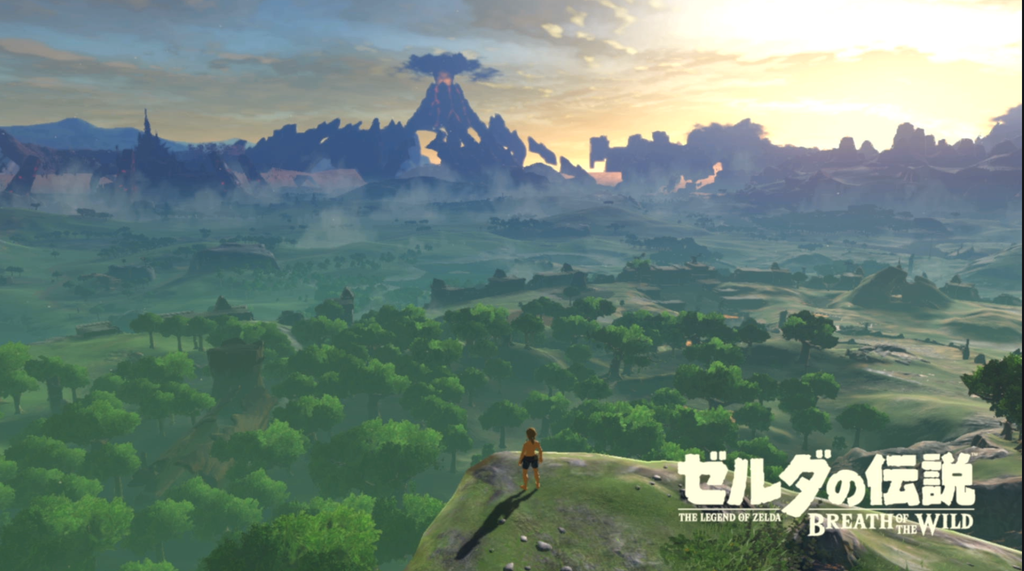
The Zelda: Breath of the Wild Wii U port is an independent project by Drey. Using a Recomp-based UWP port, it brings the Wii U version of The Legend of Zelda: Breath of the Wild to Xbox Developer Mode. You need to legally obtain game source files for version 1.5.0 (v208) or later. The game runs well on Xbox Series X; running it on Xbox Series S is not recommended due to numerous issues.
2. Prerequisites
Installing emulators on Xbox cannot be done through the regular retail store; you must sideload them via Developer Mode. This is because Microsoft prohibits the use of any emulators in standard retail mode.
1. Register a developer account: You need to register a Microsoft developer account. See Xbox Developer Mode Microsoft Developer Account Registration Guide: Free Registration + Identity Verification Full Process.
2. Unlock Xbox Developer Mode: You need to register and activate Developer Mode on your Xbox. See Complete Guide to Enabling Developer Mode on Xbox One and Xbox Series X|S (2026 Latest).
3. Enable Device Portal: See Xbox Developer Mode Remote Access Setup Guide: Same-LAN Connection and Device Portal Activation (2026).
3. Download Link
You can find the emulator installation package for download on this page. You can also use an installation package obtained through other channels.
4. Installation Steps
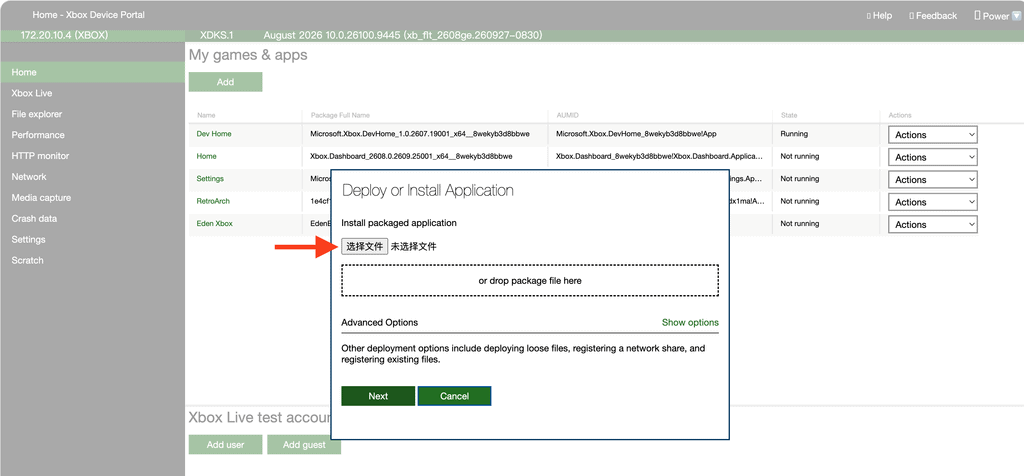
Open the Xbox Device Portal management interface via its remote access URL. In the left-hand menu, find and click Home, then click Add, select the installation package you prepared (BotWRecomp-x.x.x.appx), and click Next. Wait for Installation Progress to reach 100%, click Done, and you can then launch the emulator on your Xbox.
5. First-Time Configuration
Before running the emulator for the first time, it is recommended to switch to Game Mode so the emulator runs at optimal performance. In App Mode, only 1 GB of RAM is available; switching to Game Mode allows up to 5 GB of RAM. See How to Enable Game Mode in Xbox Developer Mode for Optimal Emulator Performance.
6. Using the Emulator
1. Prepare the game files. Prepare the Wii U version of The Legend of Zelda: Breath of the Wild game files that you obtained legally. You need the 1.5.0 (v208) version WUA file. If you have decrypted DLC, prepare that as well; if not, that's fine, since DLC is optional.
If your game is not in WUA format, you can find a game format converter to convert it.
2. Place the game files. Create a BOtW folder in the root directory of your USB drive. Place the WUA base game file in the BOtW directory, and place the DLC in the aoc folder.
3. Merge the WUA files. The base game and update package must be in the same file for the game to launch and play properly. There are two methods for merging.
(1) Use the CEMU emulator's "Convert to WUA format" feature. If the 1.5.0 update package and the base game are not in the same WUA file, use the CEMU emulator's "Convert to WUA format" feature to pack them into a single file (DLC can also be included).
Exact path: Options -> General Settings -> Game Paths, then add the game folder converted by the game format converter.
Tools -> Title Manager -> select the game title whose type is base game -> right-click -> Convert to compressed Wii U archive (.WUA)
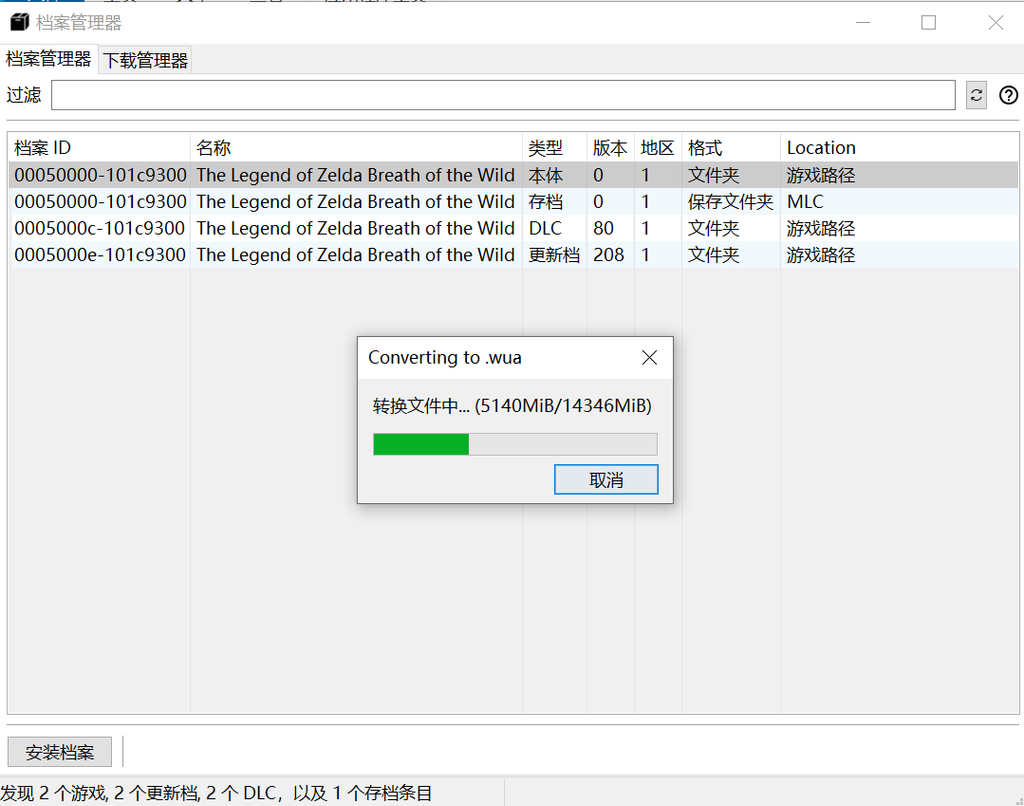
Convert to compressed Wii U archive (.WUA)
(2) Manually overwrite files. Use the game format converter to obtain decrypted files for the base game, update package, and DLC. Copy the content, meta, and code folders from the update package's decrypted folder over the corresponding content, meta, and code files in the base game's decrypted folder. If there are other language packs to replace, do the same. After overwriting, place content, meta, and code in the BOtW folder on the USB drive. Copy the folders inside the DLC's decrypted folder into the aoc folder.
4. Set up the game. Open BotW Recomp on your Xbox. Once it launches, keep tapping Continue [Xbox A] and read the on-screen instructions. After completing the 4 steps, it will begin scanning for your game. Once the scan finishes, if the game files are valid, you will be prompted to choose a launch location: either the USB drive or import to internal storage. Importing to internal storage is recommended to avoid USB drive read/write performance bottlenecks. If you are prompted that internal storage space is insufficient, refer to this article to adjust the internal storage size. See How to Expand Xbox Developer Storage: Resize Partitions + Import Games to Internal Storage (Q Drive/D Drive) Full Guide.
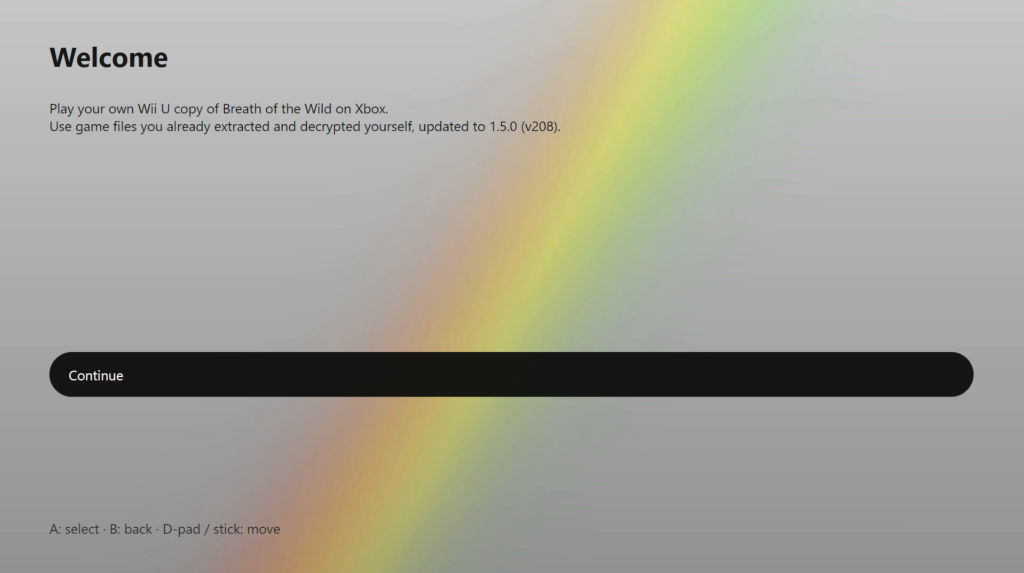
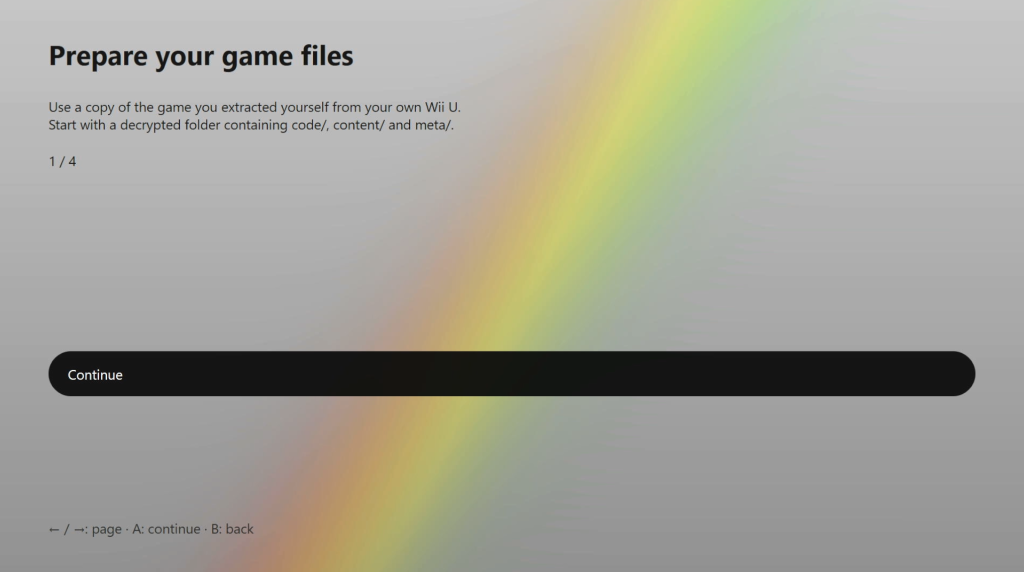
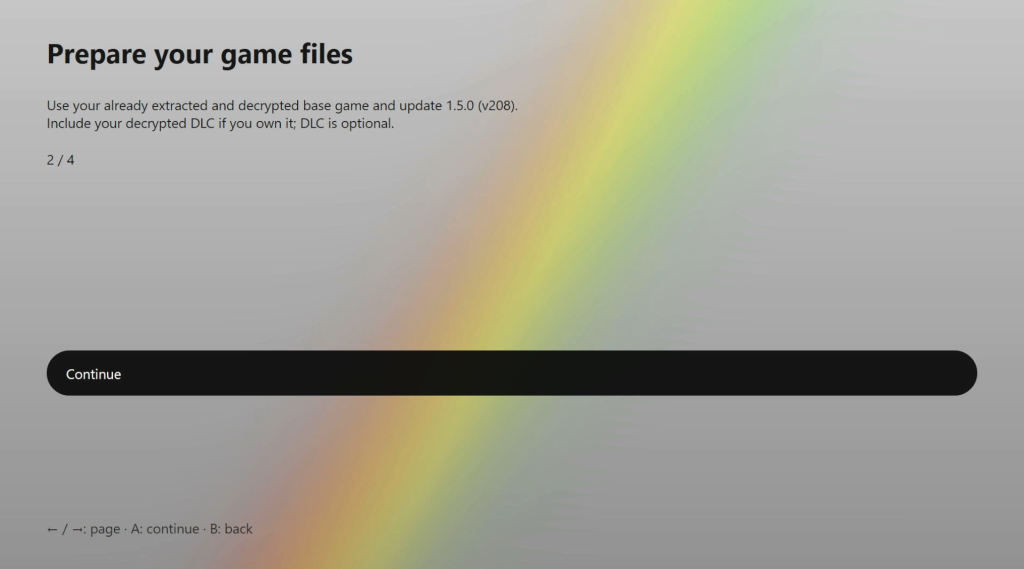
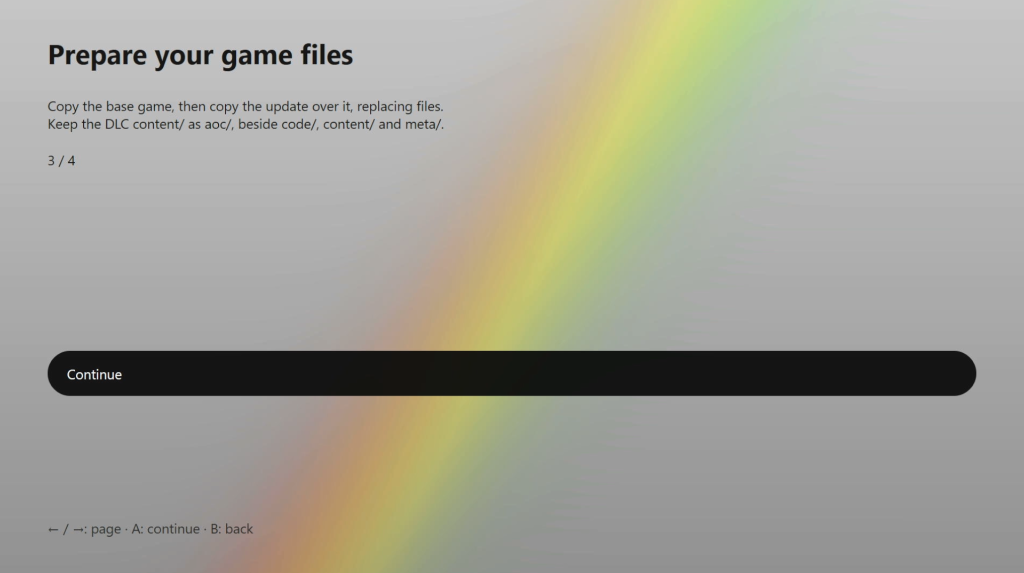
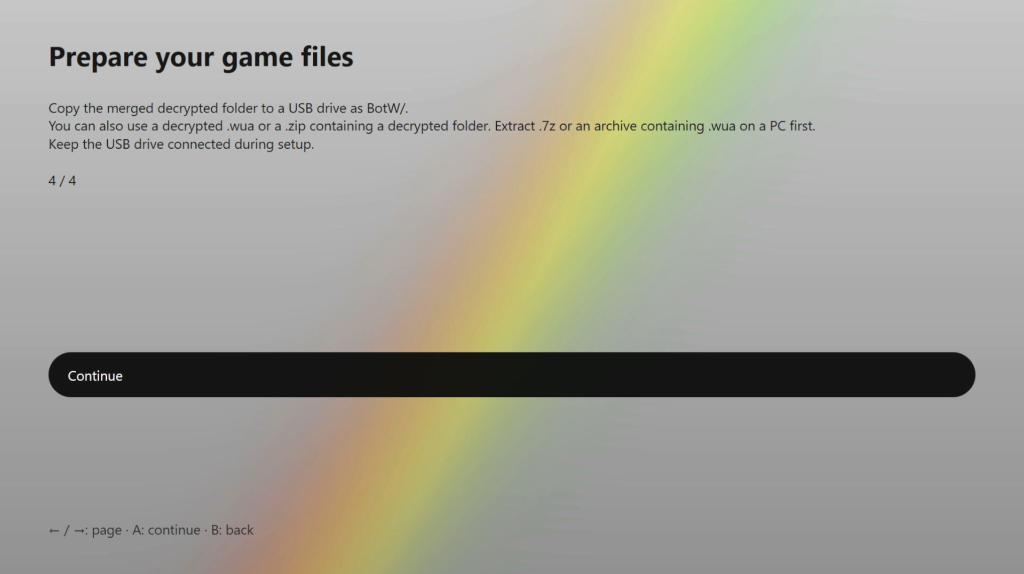
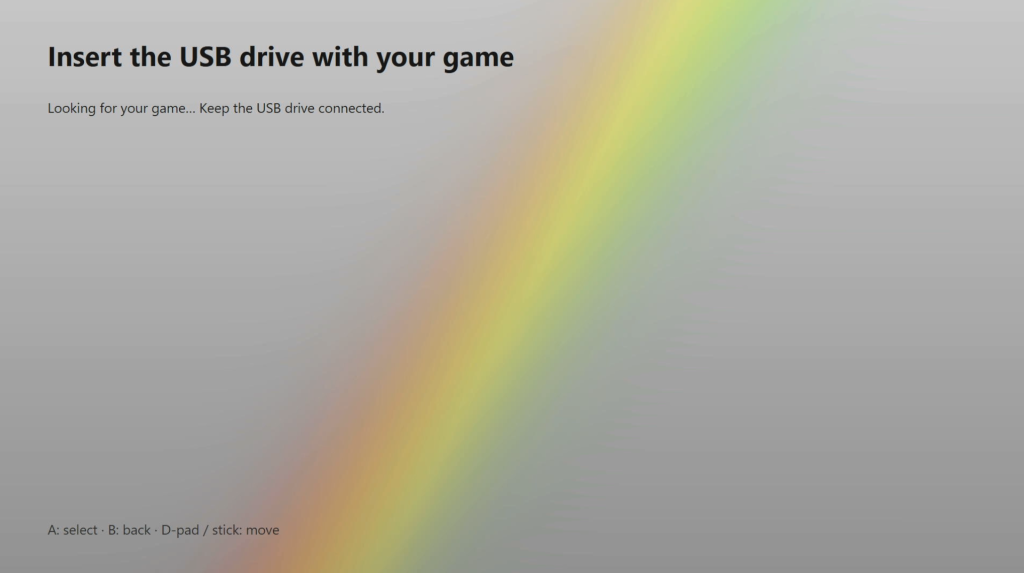
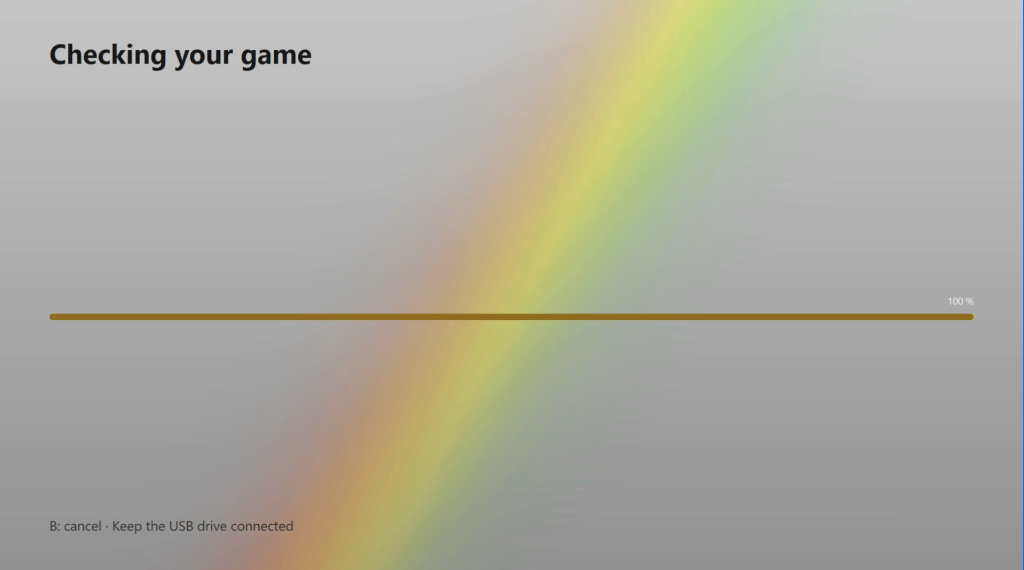
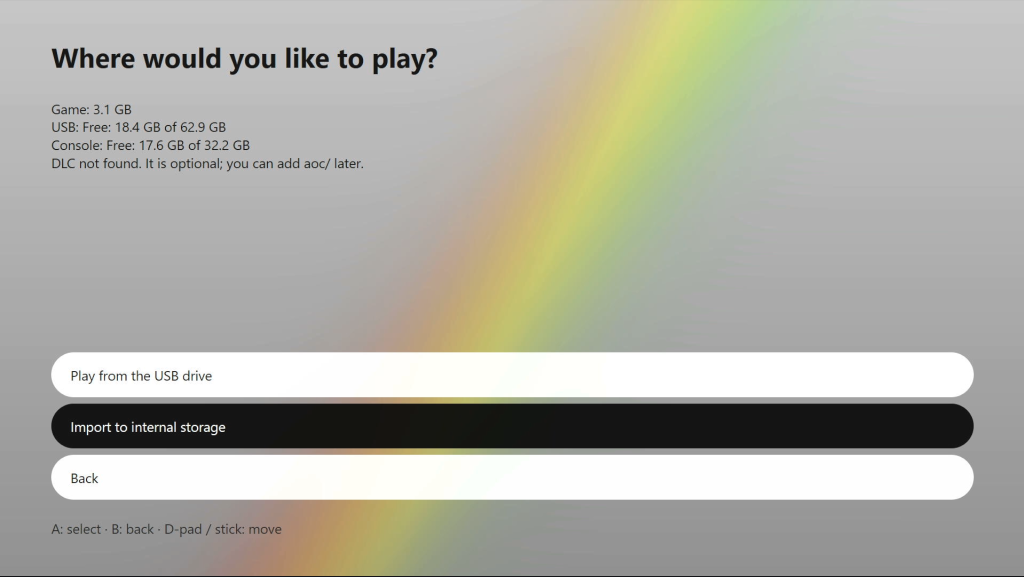
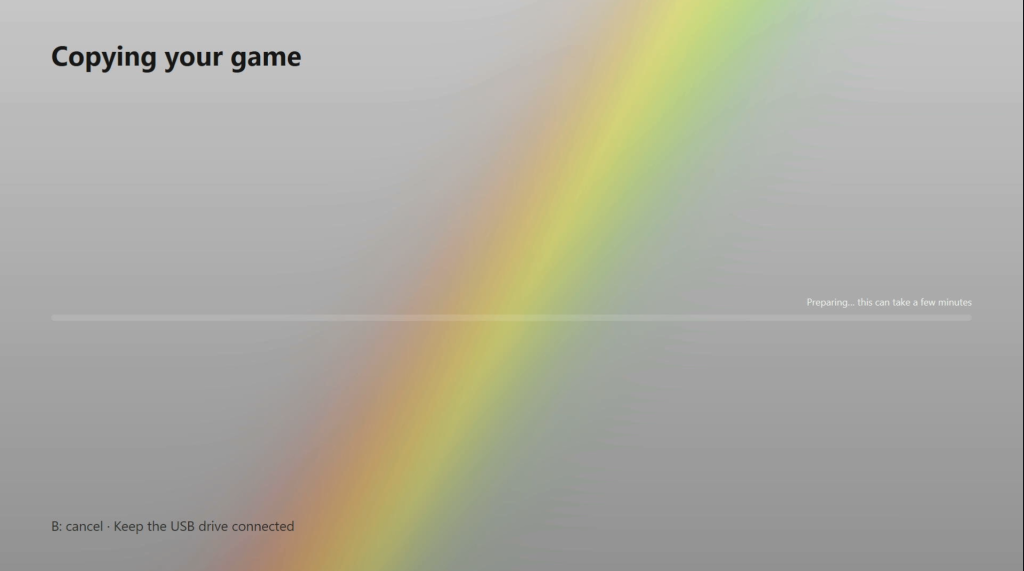
Screenshots of the setup steps for the Zelda: Breath of the Wild Wii U port
5. Start the game. Once the game files have been copied to internal storage, you can start playing.
Zelda: Breath of the Wild Wii U port tested on Xbox Series S
7. Troubleshooting
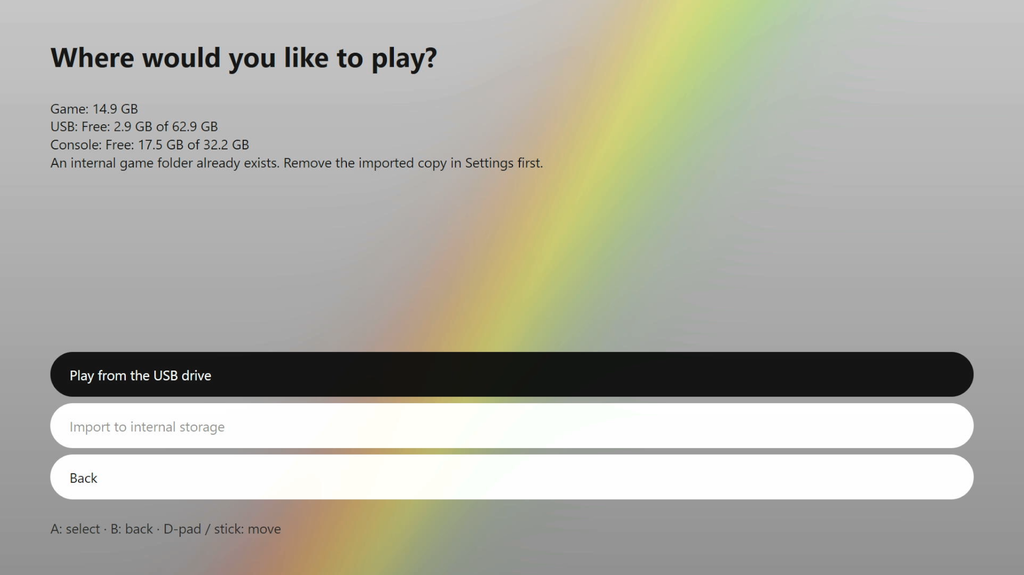
1. How do I fix the message "An internal game folder already exists. Remove the imported copy in Settings first."?
Go to Xbox Device Portal -> File explorer -> BotWRecompiled -> LocalState -> game and delete the game folder. Alternatively, choose to play from the USB drive (Play from the USB drive).
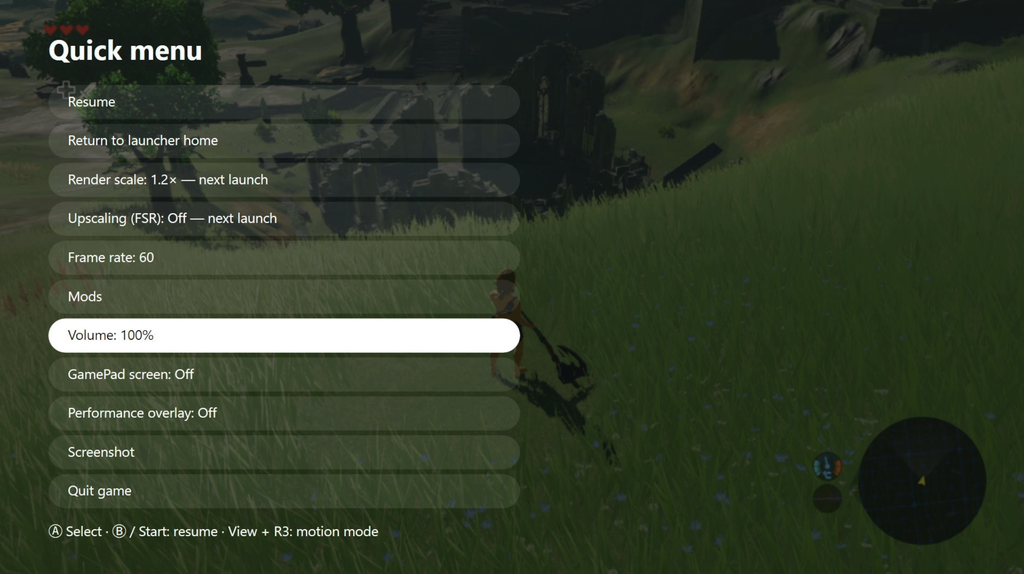
2. How do I close the game, set the game resolution, etc.?
While in-game, hold [Xbox View] + [Xbox Menu] to bring up the menu and settings options, then adjust as needed.
3. Can I enable super resolution on Xbox Series S?
Yes, it can be enabled and improves image quality. Below is a before-and-after comparison.
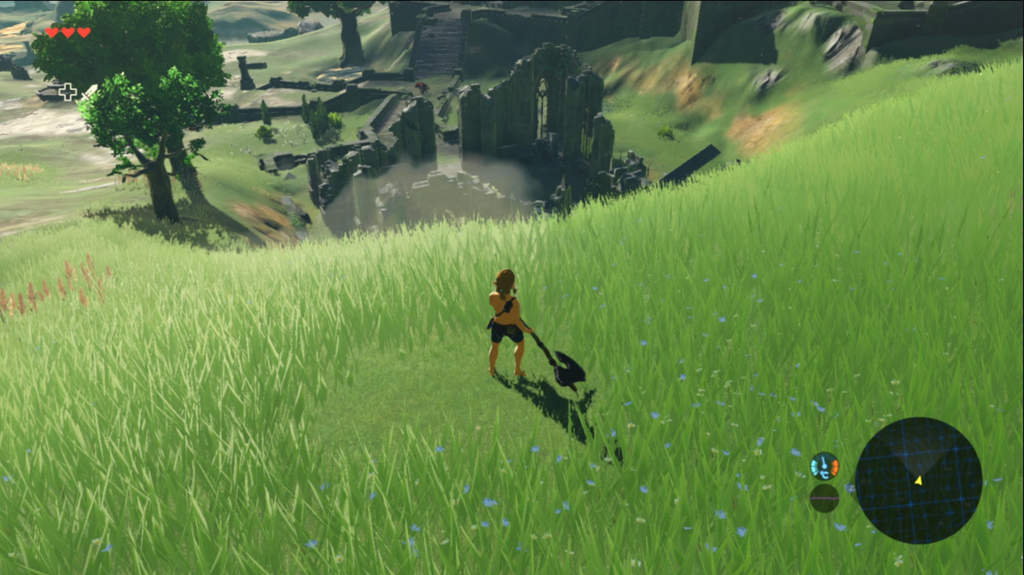
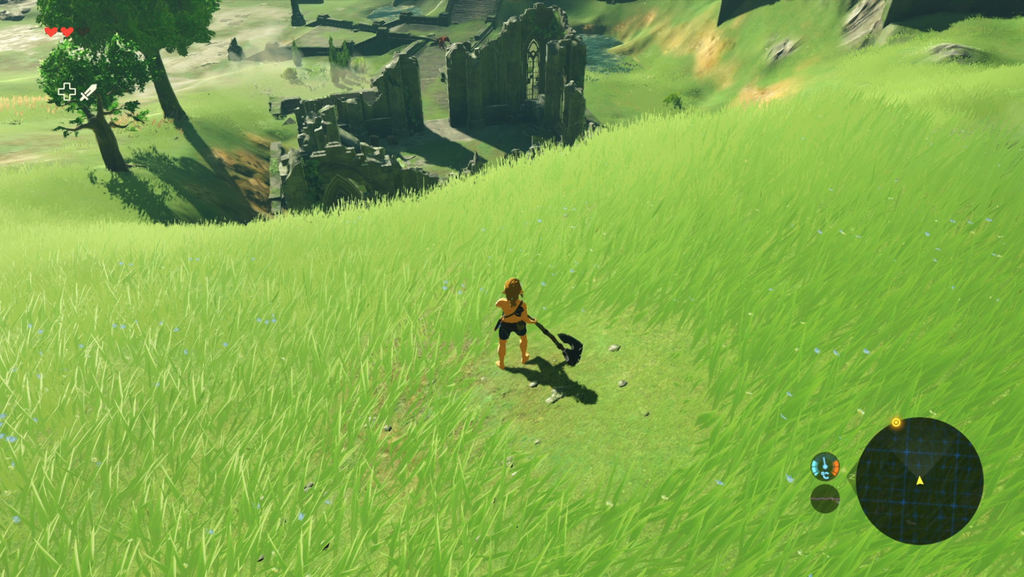
Left: before enabling. Right: after enabling.
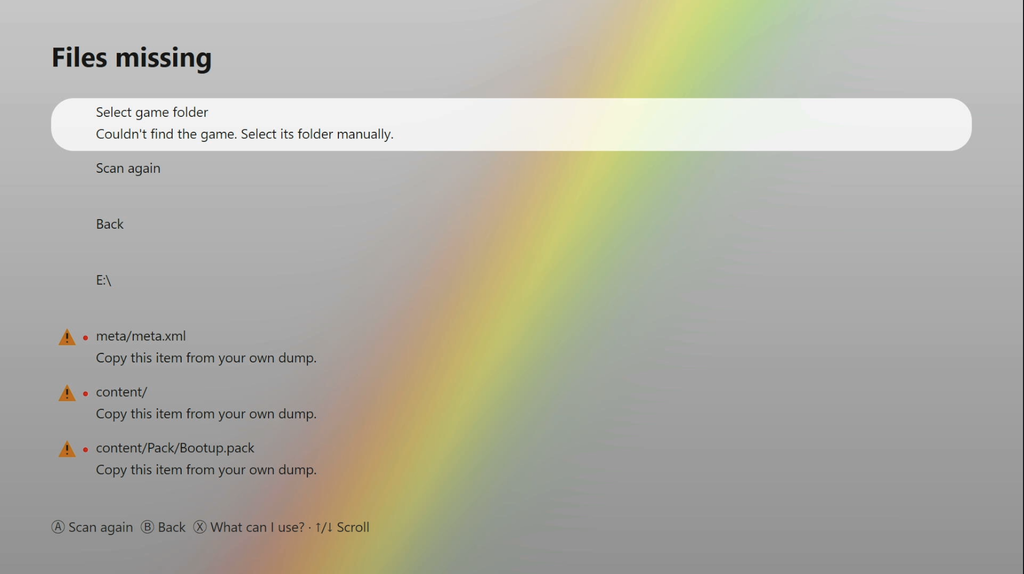
4. I've placed the game files but it says the game files were not found. Please select its folder manually (Couldn't find the game. Select its folder manually).
You may not have placed the game files content, meta, and code in the BOtW folder on the USB drive, or your game files may be incomplete. Please copy the complete files again and repeat the steps as instructed.
Support this site
If these guides helped you, you can buy me a coffee and keep the project going.
You can also support us on these platforms (opens in a new tab)