
Xbox Developer Mode Microsoft Developer Account Registration Tutorial: Free Registration + Complete Real-Name Authentication Process
To enable Developer Mode on Xbox, the first step is to register a Microsoft developer account. Previously, registering as an individual developer cost $19, and company registration cost $99. Registration is now completely free. This article will guide you step by step through the registration process from scratch.
I. Preparations before registration
Before you begin registration, please make sure you have the following materials ready:
- Personal Microsoft Account (MSA) :We recommend using an @outlook.com, @hotmail.com, or @live.com email address. If you do not have one yet, you can create one for free at account.microsoft.com.
- ID documents:Users in China must complete real-name verification using their ID card. During registration, you need to scan a QR code with your phone to complete a selfie and take photos of your physical ID card; you cannot upload photos directly.
- cell phone:Used to scan a QR code and complete identity verification.
- computer:We recommend using Edge for best compatibility.
Notice:Please use a personal Microsoft account, not a work or school email address. When you sign in with a work/school account, the "Accept and Continue" button may remain grayed out and unclickable.
II. Register a Microsoft Developer Account
Visit the registration page
Open the Microsoft Developer registration page in your computer browser and sign in with the personal Microsoft account you prepared.register
Select account type
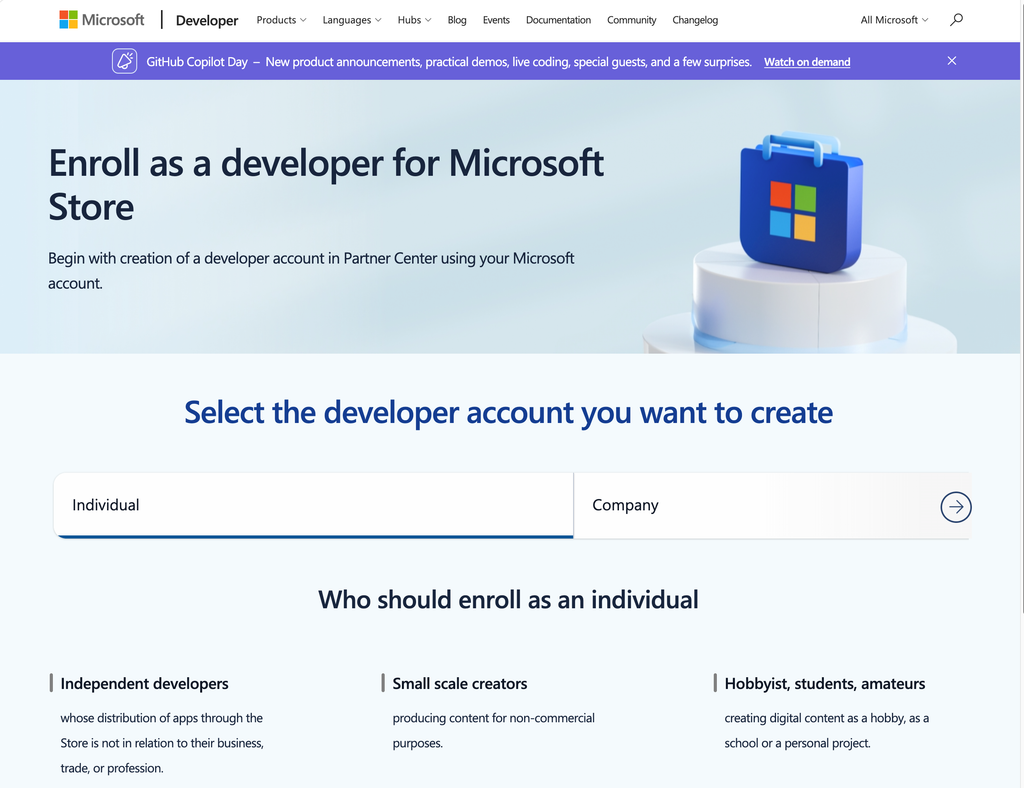
On the account type selection page, select "Individual."
Personal accounts are intended for independent developers, hobbyists, and individual creators. They are completely free and require no business verification or credit card. Company accounts are for registered business entities. Although the registration fee has also been waived, they require company registration information and a DUNS number, making the process more complicated.
For users who only want to install emulators such as RetroArch on their Xbox, a personal account is more than enough.
Fill in personal information
Fill in your name, country/region, and other basic information as prompted. For Country/Region, select "your Country/Region"
Identity verification (ID card + selfie)
This is the most critical step for users. The system will generate a QR code. After scanning it with your phone, complete the following steps:
- Take photos of the front and back of your ID card:Make sure the lighting is adequate and the text is clear.
- Selfie verification:Follow the on-screen prompts to take a selfie using facial recognition.
The entire verification process is handled by Microsoft's third-party partner AU10TIX. After verification is complete, the page will automatically redirect back to the registration process.
Complete your profile
After identity verification succeeds, fill in the remaining required information, such as the postal code, and click Submit.
Registration complete
After successful submission, you will gain access to Microsoft Partner Center, and your developer account will be officially activated.
III. Next step after registration: Activate Xbox Developer Mode
Registering a developer account is only the first step. Next, you need to:
- Search for and download the Xbox Dev Mode app (green icon) from the app store on your Xbox console.
- After opening the app, a six-digit activation code will be displayed. Please write down this code.
- Sign in to the Developer Center on your computer or phone and enter the activation code to complete console binding.
- In the Dev Mode app, click "Switch and Reboot" and wait for the console to boot into Developer Mode.
For detailed steps, please refer to our Complete tutorial on enabling Developer Mode on Xbox One/Series X|S》 。
IV. Common Problems and Solutions
Q1: The "Accept and Continue" button on the registration page does nothing when clicked?
First, clear your browser cache and cookies. Second, confirm that you are using a personal Microsoft account (Outlook/Hotmail), not a work or school account. You can also try revisiting the registration page in Edge InPrivate mode.
Q2: Why does my browser say it does not support scanning the QR code?
We recommend using your phone's built-in Chrome, Safari, or Edge browser to open the QR code link. If you scan the code with WeChat's built-in browser, the verification page may not load correctly; in that case, click the top-right corner and select "Open in Browser."
Q3: What should I do if my selfie or ID verification fails?
Make sure the lighting is adequate, your face is unobstructed, and all four corners of your ID card are visible in the frame when you take the photo. If it fails multiple times, exit and re-enter the verification process. Some users report that using the rear camera of their phone to photograph their ID card yields better results.
Q4: When activating Developer Mode, I get the message "We cannot authorize your console"?
This usually happens because the developer account has not yet been fully synchronized to Partner Center. Solution: On a computer, go to the Developer Center dashboard and confirm that your account is fully registered and linked to the Xbox Developer Program. If it still fails, try registering again or contact Microsoft support. Developer Management Backend
Q5: Can I switch between Developer Mode and Retail Mode after registering?
Yes. You can switch between Developer Mode and Retail Mode at any time, but the console needs to be restarted afterward. Regular retail games cannot run in Developer Mode. If you want to play genuine Xbox games, you need to switch back to Retail Mode via the Exit Developer Mode option on the Developer Home page.
V. Next Steps
After registration, we recommend continuing in the following order:
- Complete tutorial on enabling Developer Mode on Xbox One/Series X|S — Complete the activation of developer mode on the console.
- Enable remote access settings in Xbox Developer Mode — Configure remote access to prepare for application installation.
- Xbox RetroArch Installation Tutorial — Deploying the RetroArch simulator via the developer portal