
Getting Started with RPCS3 for Xbox: Installation and Usage Guide
Disclaimer: RPCS3 for Xbox is a third-party experimental port and is not an official Microsoft product. When using Developer Mode to sideload apps, installing the emulator, and running games, please comply with Microsoft's terms and local copyright laws, and only use PS3 firmware and game files that you legally own. Compatibility and performance vary considerably between games, and issues such as graphical glitches, slow performance, stuttering, freezing, or crashes may occur.
1. Introduction
RPCS3 for Xbox is an experimental project that ports the open-source PS3 emulator to Xbox Series X|S, allowing users to run PlayStation 3 games on their Xbox console through Developer Mode. The project has made some progress so far, and some PS3 games can run on Xbox Series X|S. However, RPCS3 for Xbox is still in experimental development. Performance varies considerably between games, and some may experience graphical glitches, slow performance, stuttering, freezing, or crashes. The developers continue to improve the emulator's compatibility and stability.
2. Prerequisites
Installing RPCS3 for Xbox on your Xbox cannot be done through the regular retail store; it must be sideloaded through Developer Mode. This is because Microsoft prohibits the use of any emulator in standard retail mode.
1. Register a developer account: You need to register a Microsoft developer account. See Xbox Developer Mode Microsoft Developer Account Registration Guide: Free Registration + Full Identity Verification Process.
2. Unlock Xbox Developer Mode: You need to register and activate Developer Mode on your Xbox. See Complete Guide to Enabling Developer Mode on Xbox One and Xbox Series X|S (2026 Update).
3. Enable Device Portal: See Xbox Developer Mode Remote Access Setup Guide: Same-LAN Connection and Device Portal Activation (2026).
3. Download
You can find the emulator installation package for download on this page. You can also use an installation package obtained from other sources.
4. Installation Steps
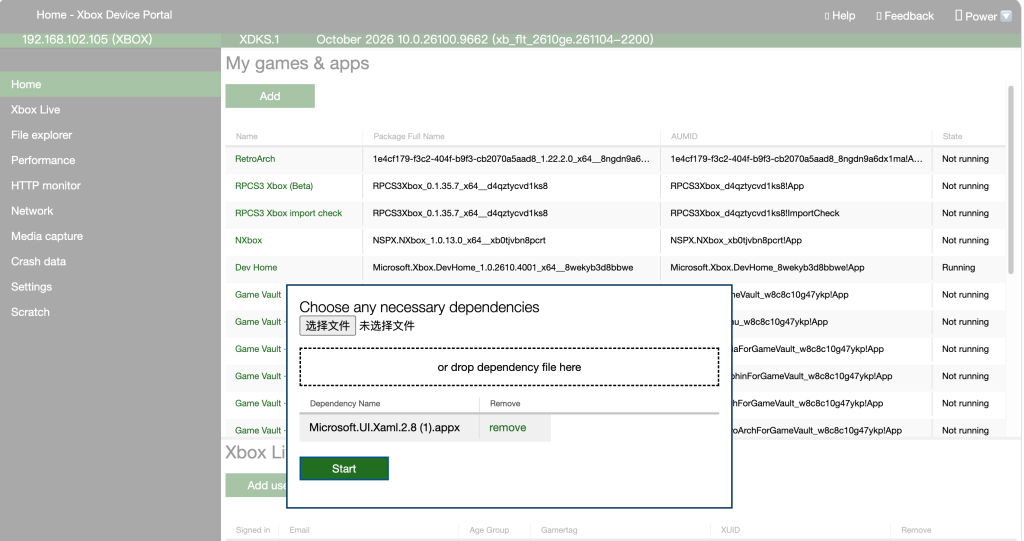
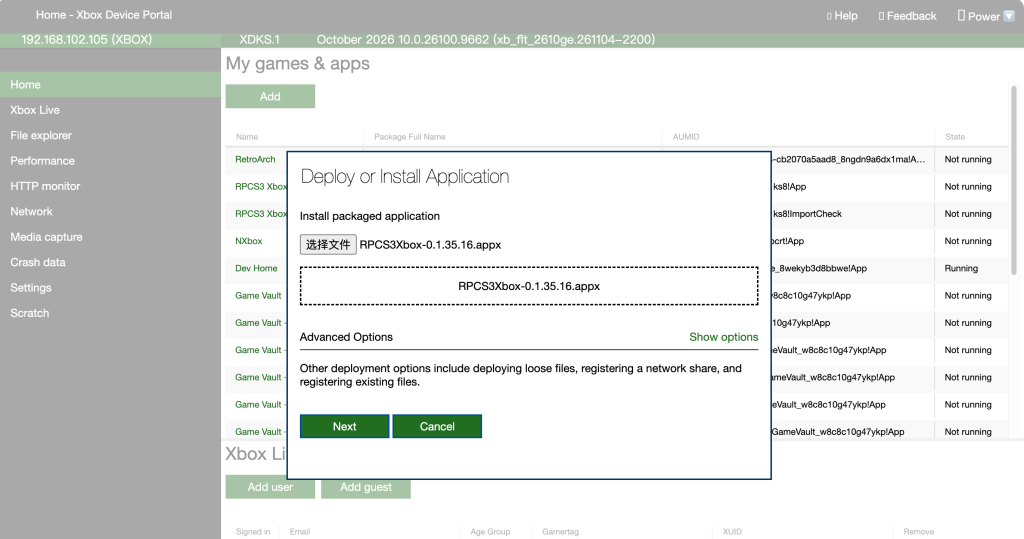
Open the Xbox Device Portal management interface via the Xbox Device Portal remote access URL. In the menu bar on the left, find and click Home, then click Add and select the installation package you prepared, RPCS3Xbox-(0.1.35.16).appx. Click Next. If the emulator has a dependency file such as Microsoft.UI.Xaml.2.8.appx, select it under Choose any necessary dependencies, upload it, and click Start to begin installing the emulator. Wait for Installation Progress to reach 100%, click Done, and you can then open the emulator on your Xbox and run it.
5. First-Time Configuration
Before running the emulator for the first time, it is recommended to switch to Game Mode so the emulator runs at its best performance. In App Mode, only 1 GB of RAM is available; in Game Mode, up to 5 GB of RAM can be used. See How to Enable Game Mode in Xbox Developer Mode for Optimal Emulator Performance.
6. Actual Usage
(1) Placing PS3 firmware and game files with a USB drive
1. Place the PS3 firmware. Take the PS3 firmware you downloaded, PS3UPDAT.PUP, and place it in the PS3/UPDATE/ directory on the USB drive.
USB drive:\PS3\UPDATE\PS3UPDAT.PUP
2. Place the game files. Put the game files you downloaded in the games folder on the USB drive, or directly in the root directory of the USB drive.
(2) Placing PS3 firmware and game files without a USB drive
1. Place the PS3 firmware. Take the PS3 firmware you downloaded, PS3UPDAT.PUP, open Xbox Device Portal, and place it in the LocalAppData\RPCS3Xbox\LocalState\firmware or LocalAppData\RPCS3Xbox\LocalState\packages directory.
2. Place the game files. Take the game files you downloaded, open Xbox Device Portal, and place them in the LocalAppData\RPCS3Xbox\LocalState\games folder.
(3) Installing firmware and loading game files
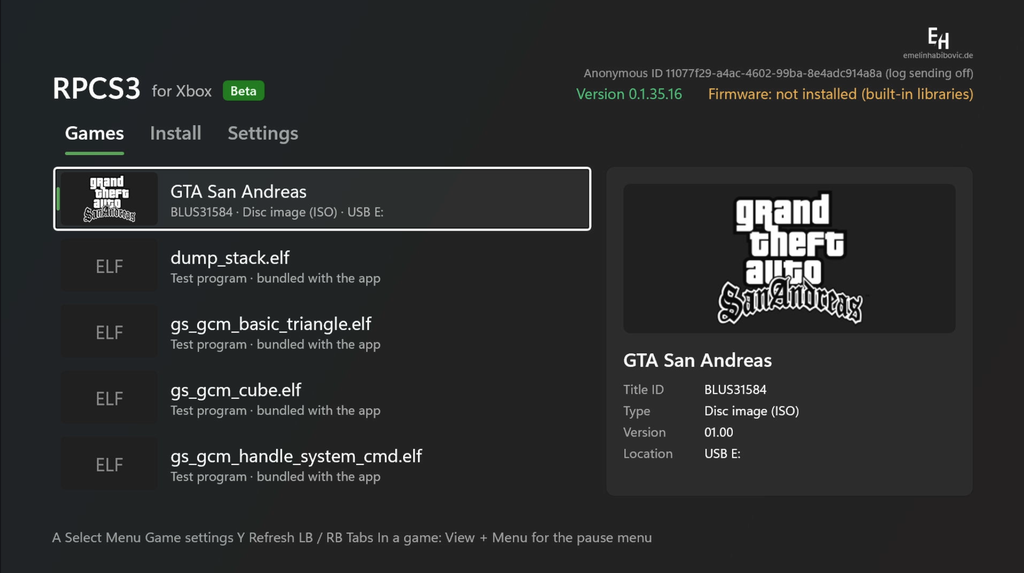
1. Install games. Open RPCS3 for Xbox. Under the games option, the emulator will automatically scan for game files; wait for the scan to complete.
2. Install firmware. If you are using a USB drive, plug it into the Xbox; if you placed the firmware and games without a USB drive as described above, no USB drive is needed. Open RPCS3 for Xbox, use 
 to navigate to Install, and the available firmware will be detected automatically. Use to select the firmware name, such as PS3 system software (firmware), then press
 to confirm the firmware installation.
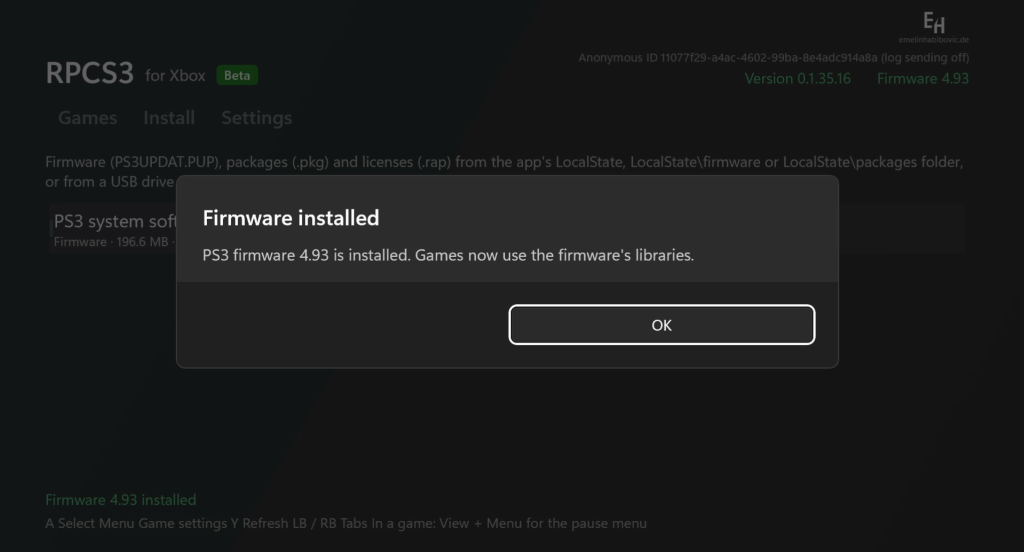
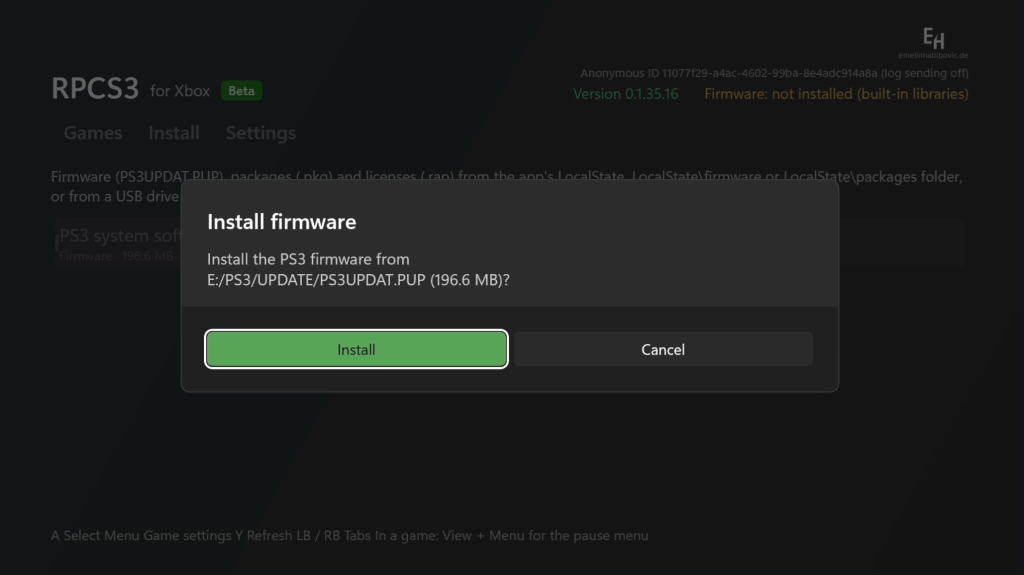
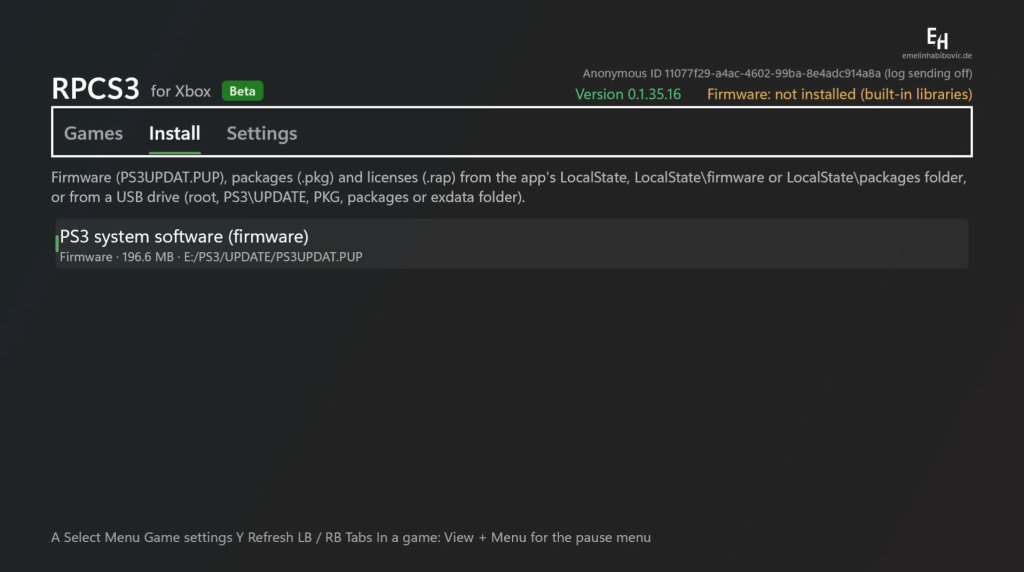
PS3 firmware installation steps
3. Load a game and play. Once the game list scan is complete, use to select a game and press to start it. Wait for the game to finish loading, and then you can play.

Game loading steps
7. Troubleshooting
1. Firmware not installed: Firmware: not installed (built-in libraries).
Check whether the PS3 firmware you legally obtained has been correctly placed in the appropriate folder, and whether the file is complete.
| Xbox | PS3 |
|---|---|
/ /  /  | × / ○ / □ / △ |
 /  | Start / Select |
| + | Pause menu (Resume, Restart, Trophies, Friends, Screenshot, Save State, Stop Game, Game Settings). On the XMB, hold for ~1 second |
In the app menu:  or
 to move, to select, to go back,

 to switch tabs, and to rescan.
Support this site
If these guides helped you, you can buy me a coffee and keep the project going.
You can also support us on these platforms (opens in a new tab)